Parental Controls That Work: Keeping Children Safer Online
Phone, tablet, router and app controls explained by age group, with step-by-step setup, the limits of filters, and the conversations that matter more.
Children in Sri Lanka now go online younger than ever, for school work, video calls with relatives abroad, games and videos. Most of what they do is harmless and much of it is useful, but parents worry, with good reason, about inappropriate content, contact from strangers, scams, and hours lost to endless scrolling. Parental controls cannot replace supervision and conversation, but they do help, especially for younger children. The good news is that the best tools are already built into Android phones, iPhones, Windows and many home routers, and most are free. This guide explains what each layer does, how to set it up and which settings suit each age group.
Key points
- Use controls in layers: the device, the apps, and the home network each catch different things.
- Google Family Link and Apple Screen Time are free and cover app approval, screen time and content filters.
- Router controls and family DNS filters protect every device on home Wi-Fi, including visitors’ and smart TVs.
- No filter is perfect, and older children can find ways around them; conversation and trust matter more as they grow.
- Know where to report: the National Child Protection Authority helpline is 1929.
Think in layers
No single control covers everything. A phone setting does nothing for a laptop, a router filter does nothing on mobile data, and an app’s own safety settings apply only inside that app. The most effective approach uses three layers that back each other up.
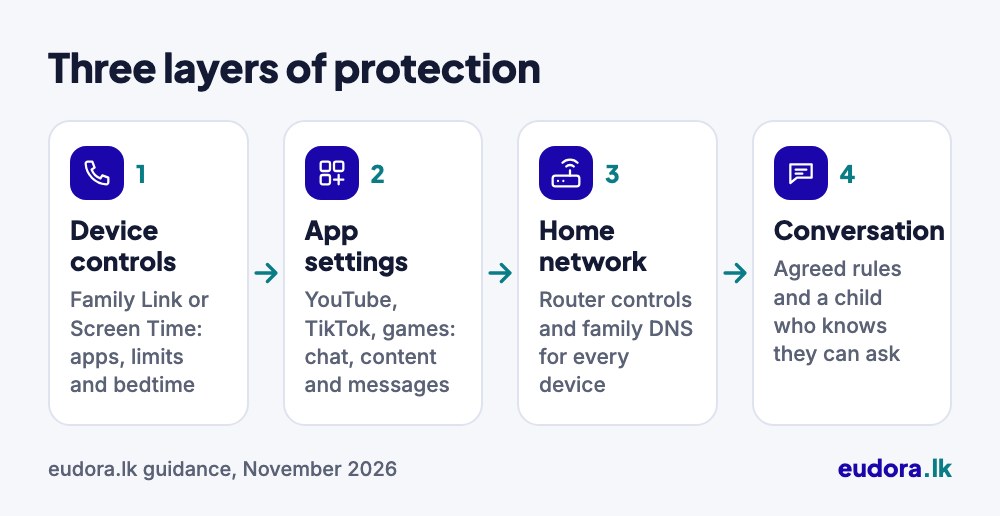
| Layer | Examples | What it does well | Where it falls short |
|---|---|---|---|
| Device | Google Family Link, Apple Screen Time, Windows family settings | App approval, screen time, bedtime, content ratings | Only covers that device |
| App | YouTube supervised accounts, TikTok Family Pairing, game console settings | Controls inside the app, such as chat and recommendations | Has to be set up in each app |
| Network | Router parental controls, family DNS filters | Protects every device on home Wi-Fi | Does nothing on mobile data or other Wi-Fi |
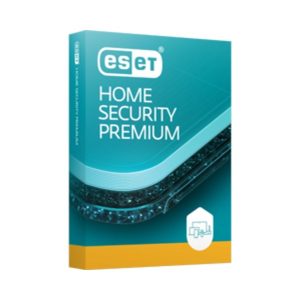
| Security software | Kaspersky Premium with Safe Kids, ESET HOME Security Premium | Web filtering and reports across devices | Paid; needs installing on each device |
Android: Google Family Link
Family Link is Google’s free parental control service for Android phones, tablets and Chromebooks. A parent installs the Family Link app on their own phone and creates or links a Google account for the child. From then on, the parent can approve or block app downloads from the Play Store, set daily screen time limits and a bedtime, filter content in Chrome and Google Search, see the device’s location and lock it remotely.
- Set it up on a new phone: sign in with the child’s account during setup and follow the prompts to link it to your account.
- Require approval for apps: turn on approval for all apps, or for apps above a certain age rating.
- Set limits: a daily limit and a bedtime, with exceptions for calls and school apps.
- Turn on SafeSearch: in Family Link’s content settings for Google Search and Chrome.
For children under 13, Google requires parental supervision on their account. For teenagers, supervision can continue with the teen’s agreement, and they can see what is being shared.
iPhone and iPad: Screen Time
Apple builds parental controls into iOS through Family Sharing and Screen Time. Create a child account in Family Sharing, then manage their device from your own iPhone in Settings, then Screen Time. You can set downtime, app limits, content and privacy restrictions, and “Ask to Buy”, which sends you a request before any app or in-app purchase. Communication Limits control who the child can call and message, and Communication Safety blurs images containing nudity in Messages and other apps for child accounts.
Tip: Set a Screen Time passcode that is different from the device passcode, and do not enter it where your child can see. It is the most common way children get round the limits.
Home Wi-Fi: router controls and family DNS
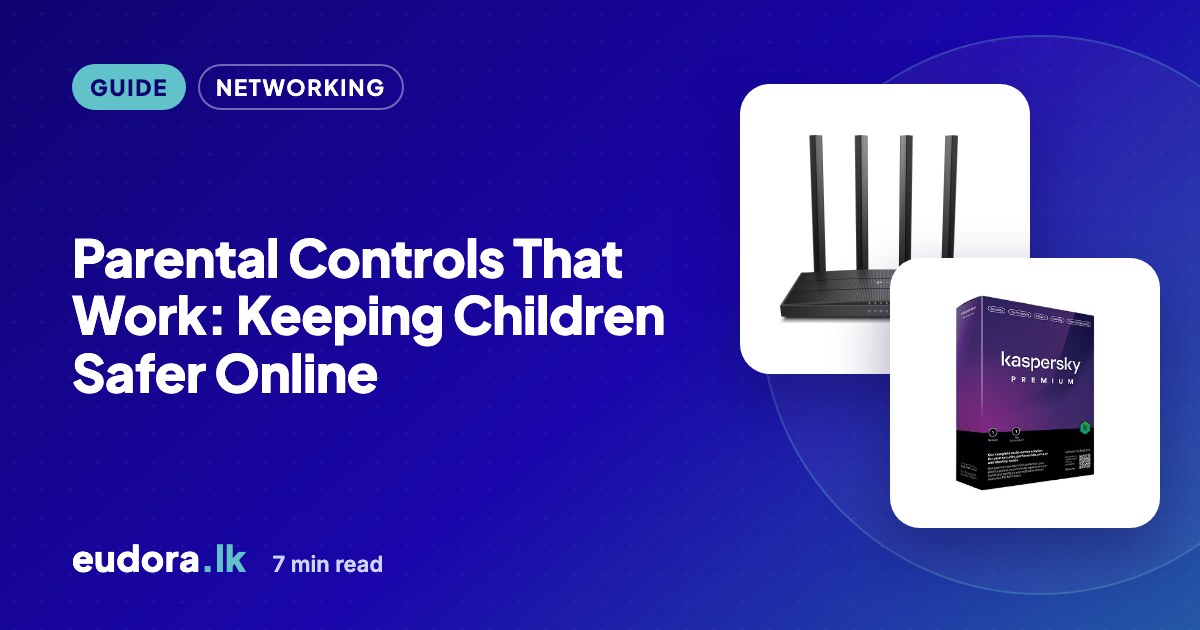
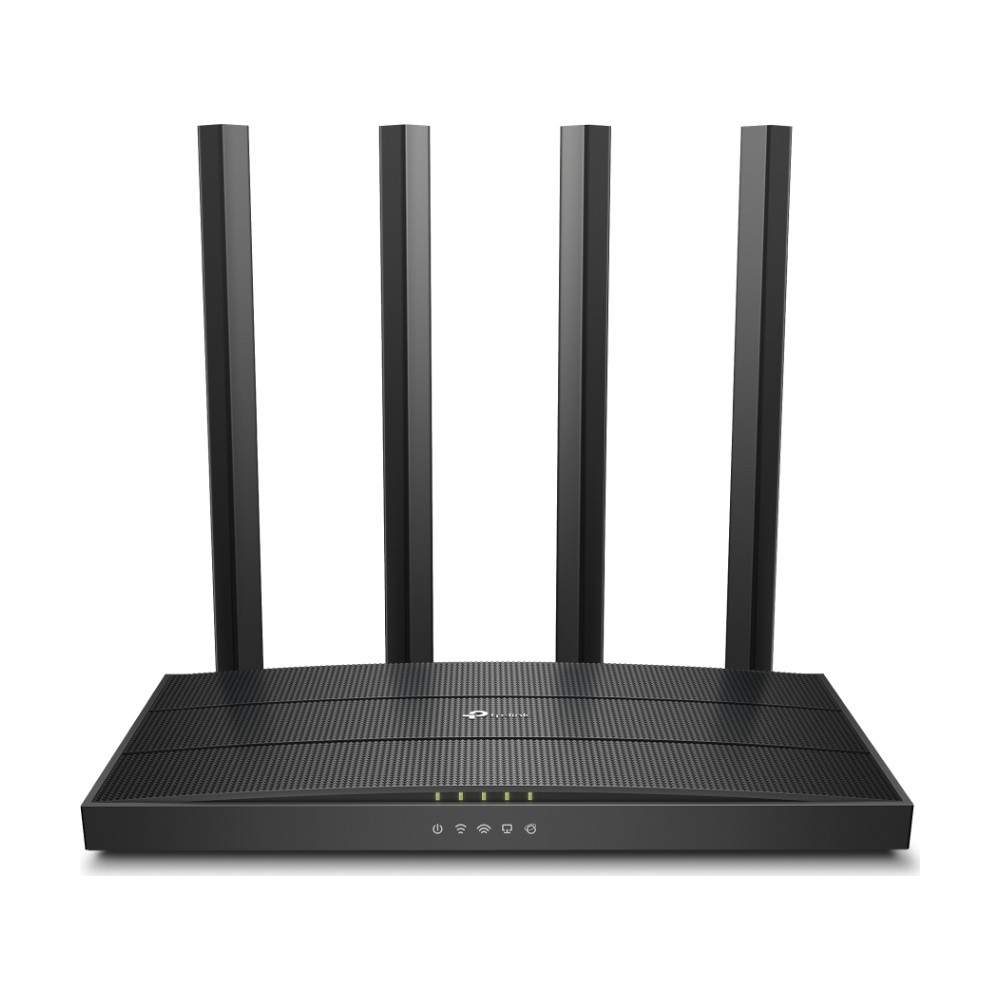
Network controls protect every device on your home Wi-Fi, including laptops, smart TVs, game consoles and friends’ phones, without installing anything on them. Many current routers include parental controls. On the TP-Link Archer C6 at Rs 15,000, for example, the Tether app lets you create a profile for each child, add their devices, block categories of websites and set time limits and bedtime for those devices.
A simpler option is to change the router’s DNS settings to a free family filter. DNS is the internet’s address book, and family DNS services refuse to look up adult and malware sites. Cloudflare’s family service at 1.1.1.3 blocks malware and adult content, and OpenDNS FamilyShield does similar. Change the DNS servers in the router’s internet settings and every device on home Wi-Fi uses them. Our router security checklist covers changing router settings safely.
Network filters stop working when a phone switches to mobile data, so combine them with device controls. They also cannot see inside encrypted apps, so they block websites rather than particular videos or chats.
Inside apps: YouTube, games and social media
Most popular apps have their own safety settings, which control things the device and network cannot see. For young children, YouTube Kids offers a separate, more limited app; for older children, a supervised YouTube account managed through Family Link lets you choose a content level. TikTok’s Family Pairing links a parent’s account to a teen’s to manage screen time, direct messages and content. Game consoles, Roblox and Minecraft have settings to limit chat to friends or turn it off. Most social media apps require users to be at least 13, and some default teen accounts to private.
Go through each app your child uses, together, and turn on the safety settings. It is also a good chance to talk about why those settings exist.
Settings by age
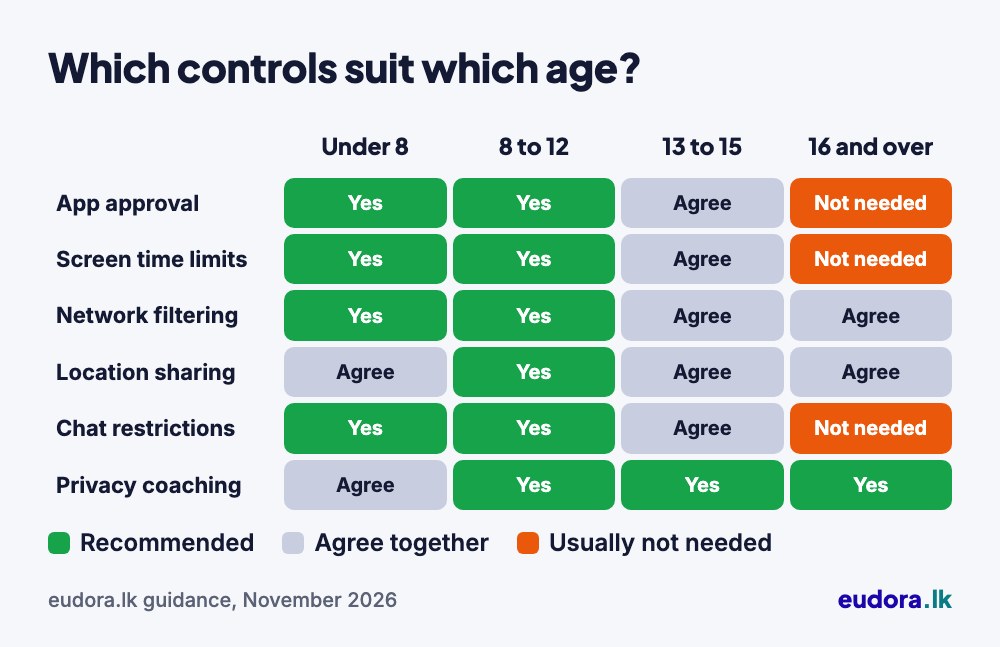
Under 8: use shared family devices in shared rooms, child accounts with app approval, YouTube Kids rather than YouTube, and tight screen time limits. Network filtering is worth turning on.
8 to 12: a first phone or tablet with Family Link or Screen Time, app approval, a bedtime, SafeSearch, chat in games limited to known friends, and no social media accounts until the minimum age.
13 to 15: more freedom with agreed limits, supervision the teen knows about, privacy settings on social media, and regular conversations about scams, sharing photos and online friends.
16 and over: most controls give way to trust and advice. Focus on account security, scams and privacy, which are risks for adults too.
Security software for families
Paid security suites add web filtering and activity reports across Windows, Android and sometimes iPhone, managed from one dashboard. Kaspersky Premium at Rs 4,200 includes Kaspersky Safe Kids, and ESET HOME Security Premium at Rs 4,300 includes ESET Parental Control for Android. They also protect against malware and scam websites, which children are as likely to meet as adults. Our antivirus guide compares the options, and our article on online scams in Sri Lanka covers the tricks circulating now.
What controls cannot do
Filters miss things, and determined older children can get around many controls with a friend’s phone, a VPN app or a factory reset. Controls also cannot tell you whether someone your child chats with is who they claim to be. The most effective protection is a child who feels able to tell you when something online upsets or confuses them, without fear of losing their phone. Agree family rules together, such as devices out of bedrooms at night, no sharing of photos with people met online, and asking before downloading apps, and review them as children grow.
Warning: If a child is being threatened, blackmailed with images or contacted by an adult in a sexual way, do not delete the messages. Take screenshots, keep the device, and report it.
Where to get help in Sri Lanka
The National Child Protection Authority runs the 1929 child helpline for reporting abuse and exploitation, including online. Sri Lanka CERT handles cyber security incidents and gives advice, and the Sri Lanka Police has a cyber crime unit for criminal matters. Platforms also have their own report buttons, which should be used as well. Our team can help set up router controls and family devices at home with our smart device setup service at Rs 1,500 per device, or a full home network setup.

Frequently asked questions
Are parental controls free?
Yes, the main ones are. Google Family Link, Apple Screen Time, router controls and family DNS filters cost nothing. Security suites with family features are paid.
Do router controls work on mobile data?
No. They only apply on your home Wi-Fi. Use device controls as well for phones.
At what age should controls stop?
There is no fixed age. Gradually relax them through the teenage years as trust and understanding grow.
Can my child see what I monitor?
On Family Link and Screen Time, children can see that supervision is on. Being open about it usually works better than hidden monitoring.
Where do I report online abuse of a child?
Call the National Child Protection Authority helpline on 1929, keep the evidence, and report the account to the platform.

Eudora Technology is a Kandy-based team working on CCTV, networks, IT support, cloud and websites for homes and businesses across Sri Lanka.