Slow Wi-Fi at Home? 12 Checks Before You Buy New Equipment
Before you buy a new router or extender, work through 12 checks that show whether the slowdown comes from your plan, the router's position, interference, settings or coverage.
When videos buffer and video calls freeze, it is tempting to buy a new router or extender straight away. New equipment may not help, though: the slowdown can come from the plan, the line, the router’s position, interference or one old device. These 12 checks, done in order, show where the problem is before you spend any money.
Key points
- Test with a network cable first. If that is slow too, an extender or mesh system will not fix it.
- Compare results with your plan speed. “AC1200” and similar box figures are link rates, not download speeds.
- Position, interference, band and channel cost nothing to change, so try them first.
- Buy an extender, access point or mesh only when Wi-Fi is fast near the router and slow in distant rooms.
Start with three speed tests
Use the same speed test site or app each time, pause large downloads and note both the download and upload results. Speed tests report megabits per second (Mbps), while browsers often show downloads in megabytes per second (MB/s). One MB/s equals 8 Mbps.
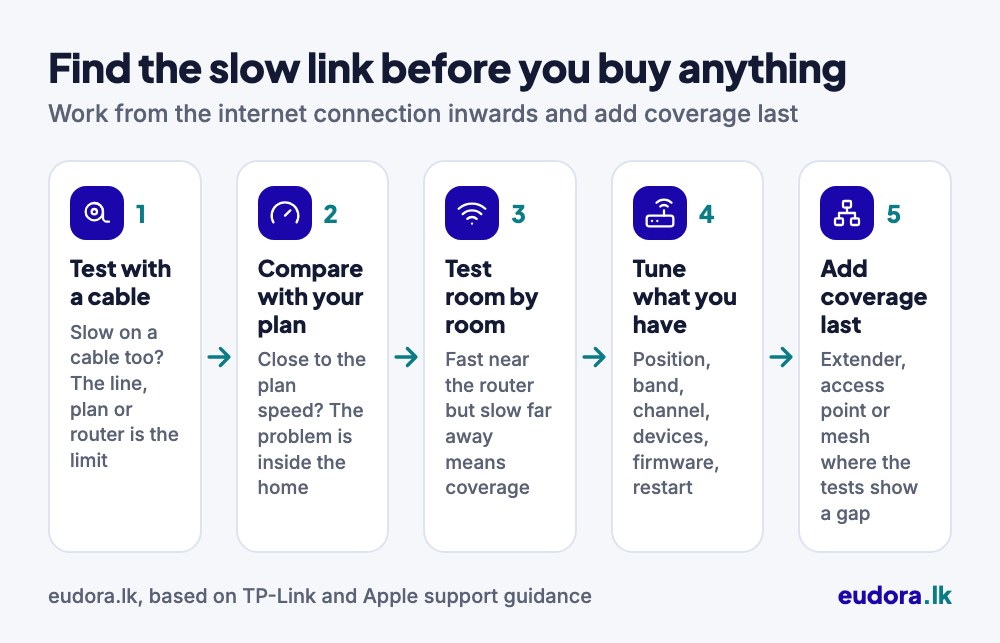
1. Test with a cable
Connect a laptop to the router, or to the provider’s fibre box (ONT), with a network cable and run a test. A USB-C Ethernet adapter works if the laptop has no network port. TP-Link’s slow internet guide starts here too: a cable takes Wi-Fi out of the picture, and plugging straight into the provider’s box takes your own router out as well. If the cable result is also slow, the cause is the line, the plan or the router itself (check 12 covers router limits), so no extender or mesh system will help.
2. Compare the result with your plan
Find your package speed on the bill or in your provider’s app. The plan speed is the most you can expect, so a cable result a little below it is normal; one far below it at several times of day is worth reporting to the provider, with screenshots. Some packages also slow down once a monthly data allowance is used up, so check your remaining data first.
3. Test next to the router, then in the slow room
Now test on Wi-Fi about 2 to 3 metres from the router with nothing in between, as TP-Link suggests, and then in the room where the problem is. Together, the three results usually point to one part of the chain.
| Cable test | Wi-Fi near the router | Wi-Fi in the slow room | What it points to |
|---|---|---|---|
| Slow | Slow | Slow | The line, the plan or the router |
| Close to plan | Slow | Slow | Router settings, interference or the device |
| Close to plan | Close to plan | Slow | Coverage: distance, walls and floors |
| Close to plan | Close to plan | Close to plan | An intermittent fault: test again when it is slow |
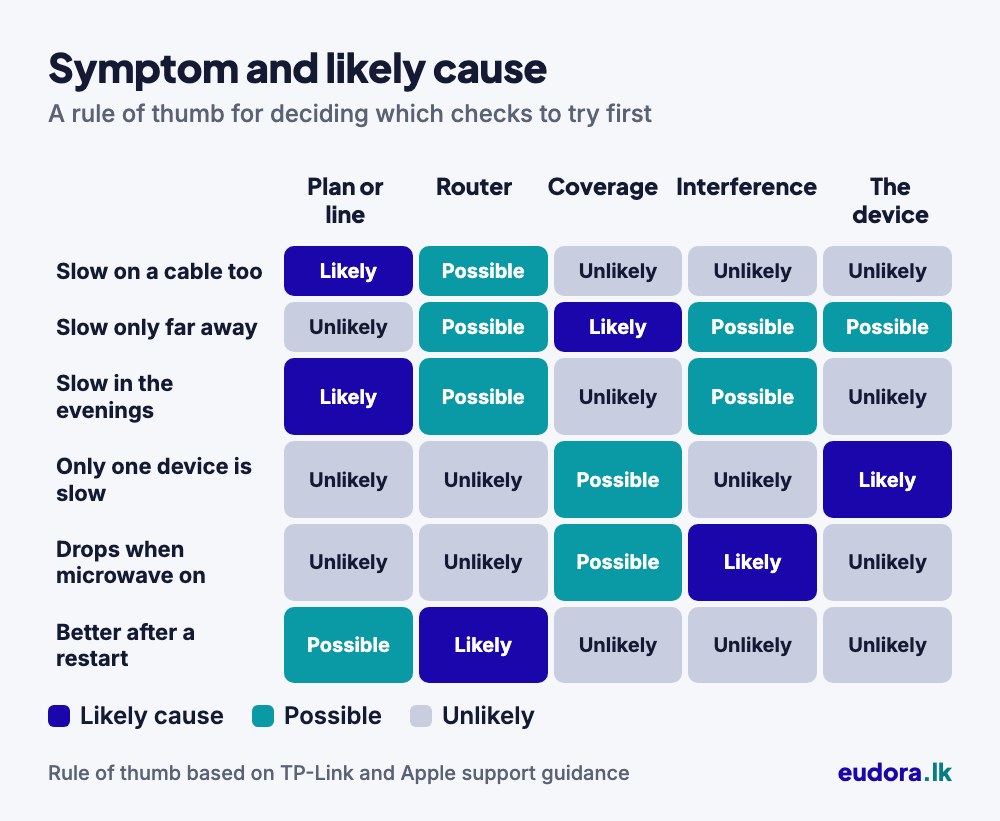
If your symptoms are less clear-cut, the matrix below matches common complaints to their likely causes.
Fix the router’s position and surroundings
4. Move the router
Wi-Fi weakens with distance and with every wall and floor. Apple rates metal as the worst obstacle, then concrete and plaster, then brick and water, and notes that a metal-reinforced concrete floor can cause poor Wi-Fi. A router at floor level in a downstairs corner can struggle to reach the bedrooms upstairs.
TP-Link advises a raised, central spot. Keep the router clear of metal such as steel cupboards and window grilles, out of closed cabinets and off sunny window sills: TP-Link says a covered or sun-heated router can overheat and slow down. Point movable antennas straight up for one floor, or tilt them diagonally to reach the floor above.
5. Look for interference
Other equipment can drown out Wi-Fi, particularly on 2.4 GHz. Apple’s interference guide lists microwave ovens, cordless phones, wireless video cameras, fluorescent lights, power cables and USB 3 devices, and TP-Link adds Bluetooth and neighbouring networks. If the Wi-Fi drops whenever the microwave runs, move the router or the oven, or use 5 GHz in that room.
Choose the right band and channel
6. Use the right band
Dual-band routers offer 2.4 GHz and 5 GHz. 5 GHz is faster but has a shorter range and is blocked more easily by walls; 2.4 GHz reaches further but is slower and shared with Bluetooth. Apple suggests moving more devices to 5 GHz where they can use it. Many cameras and smart home devices, including several EZVIZ cameras and smart locks we sell, use 2.4 GHz only, so keep both bands on. Our 2.4 GHz vs 5 GHz guide explains more.
7. Let the router choose the channel
Nearby networks on the same channel compete for airtime. Apple’s recommended router settings are Auto for the channel, a 20 MHz channel width on 2.4 GHz and Auto on 5 GHz, because wider channels are faster but more prone to interference. If you set a 2.4 GHz channel by hand, TP-Link recommends 1, 6 or 11, the three that do not overlap. Apple notes that most routers look for the clearest channel when they start up.
Look at what is using the connection
8. Count the devices and what they are doing
Every phone, TV, laptop and Wi-Fi camera shares the same Wi-Fi and the same plan, and video needs the most. YouTube recommends 20 Mbps for 4K and 5 Mbps for 1080p, and Microsoft recommends 4 Mbps of download for a Teams video meeting.
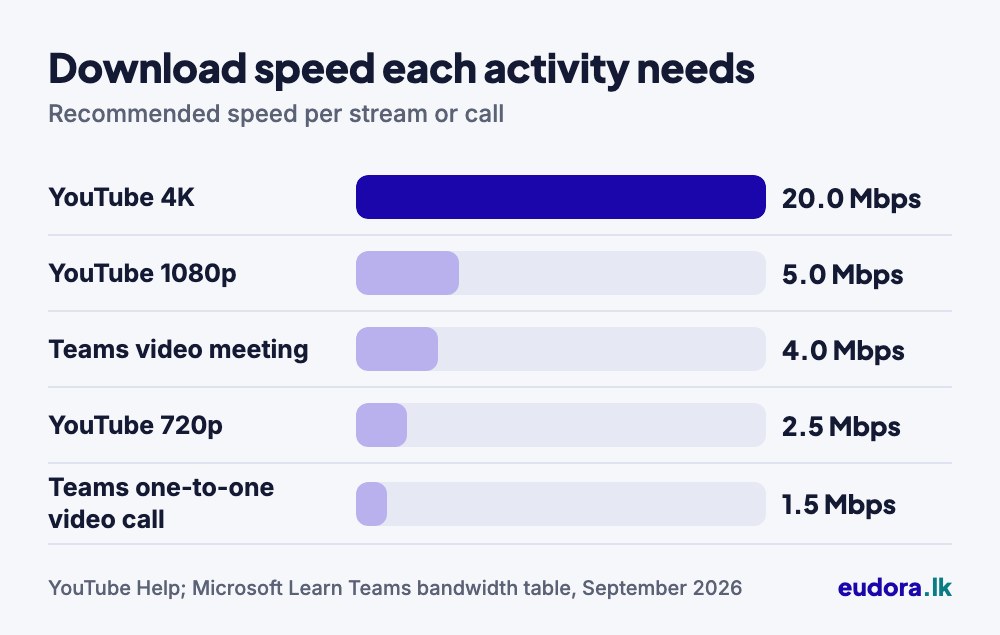
For example, 4K YouTube on the TV, two phones playing 1080p YouTube and a laptop in a Teams meeting need about 34 Mbps at the same moment, before photo backups, game downloads and updates. Check the router’s list of connected devices too, and change the Wi-Fi password if you find one you do not recognise.
9. Check older devices
Each device connects at the best speed it supports, so a phone or laptop limited to Wi-Fi 4 (802.11n) or to 2.4 GHz will never match a newer one beside it, whatever router you buy. Slow devices hold others up too: TP-Link explains that devices take turns to transmit, so one that sends slowly makes the rest wait. Some routers, including the Archer C6, have an Airtime Fairness setting that limits this.
Restart, update and check the router
10. Restart in the right order
A restart clears many temporary faults. TP-Link’s order is to unplug the provider’s box and then your router, wait two to three minutes, power the provider’s box first and start the router once that is fully connected. After a power cut, give both a few minutes to reconnect before you test. If the router needs restarting every few days, check its temperature, power adapter and firmware: TP-Link lists an inadequate power supply as one cause of poor router performance.
11. Update the firmware and check the settings
Apple recommends automatic firmware updates where the router offers them, since updates improve stability and performance as well as security. TP-Link’s firmware guide says to match the file to the hardware version on the label, update over a cable and never cut the power midway, so avoid times when a power cut is likely. Apple also advises WPA3 or WPA2/WPA3 security and says old modes such as WEP and TKIP reduce performance. For a test, TP-Link suggests switching off QoS and parental controls, which can both limit speeds.
12. Know the limits of your provider’s router
Look up the model on the router’s label. Some routers have 2.4 GHz Wi-Fi only or Fast Ethernet (10/100 Mbps) ports, which TP-Link says top out at about 90 Mbps; a faster plan needs Gigabit ports. Box figures such as “AC1200” add up the top link rates of both bands, and a device usually connects on one band at a time; TP-Link says real transfer speeds are typically 75% or less of the link rate.
If the provider’s Wi-Fi is the weak part, add your own router behind it or ask the provider whether theirs can run in bridge mode. Two routers in a row create “double NAT”, which Apple says can cut some devices off from certain services, and two Wi-Fi networks on one channel compete, so turn off the provider router’s Wi-Fi or give each a different channel. Slow ports are different: a router plugged into a 10/100 port is still capped by it, so use a Gigabit port if the box has one or ask the provider about a replacement. With a 4G router, try it near an upstairs window and compare speed tests.
When an extender, access point or mesh is the right fix
If the cable test is close to your plan and Wi-Fi is fast next to the router but slow in distant rooms, the signal is simply not reaching. That is when new equipment helps.
| Fix | Good for | Watch out for |
|---|---|---|
| Range extender | One weak room, no cable possible | The extra wireless hop lowers speed |
| Access point | A room you can reach with a network cable | Needs a cable run; check the port speed |
| Mesh system | Several floors, one network name throughout | Nodes usually need to be one brand |
| New router | An old 2.4 GHz-only router or 100 Mbps ports | Does not fix distance on its own |
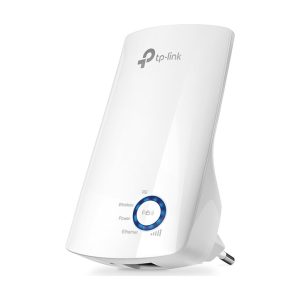
A range extender such as the TP-Link TL-WA850RE repeats the router’s signal on 2.4 GHz. Place it about halfway to the weak room, in a spot where at least three of its five signal lights are lit, as TP-Link recommends. Devices on it are slower than they would be next to the router, but its Ethernet port can connect a smart TV or DVR by cable.
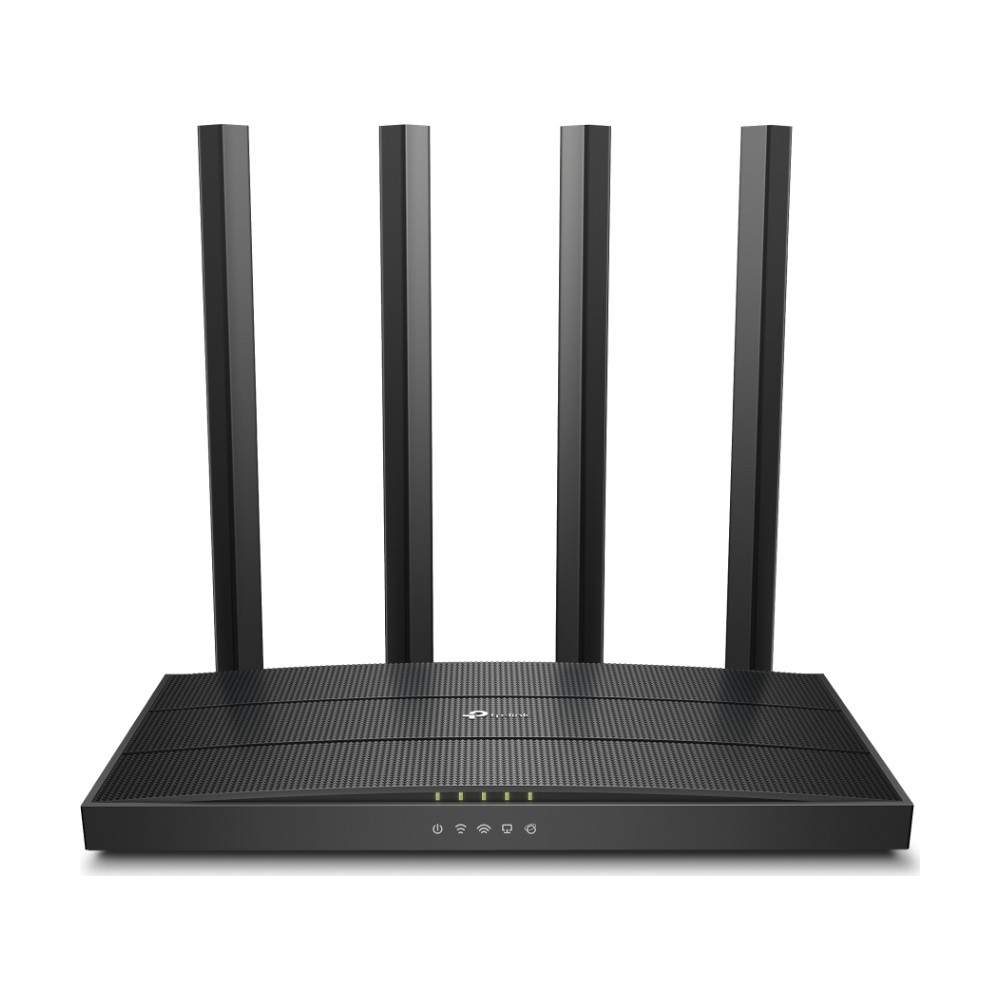
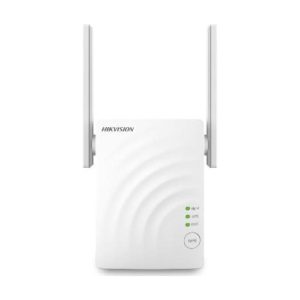
An access point is fed by a network cable, so there is no wireless hop. The Hikvision DS-3WRE12C works as a dual-band extender or access point, but as an access point its 10/100 Mbps port keeps it below 100 Mbps. On a faster plan, an Archer C6 in access point mode has Gigabit ports.
For a house on several floors, our mesh Wi-Fi guide covers node placement and wired backhaul, and our Wi-Fi 5, 6 and 7 explainer covers what newer routers change.
Prefer to hand it over? Our Router & Mesh Wi-Fi Setup covers placement, secure settings, guest Wi-Fi and a coverage test in every room, and a remote support session can help with settings without a visit. Our networking services also cover larger homes and offices.
Frequently asked questions
Why is my Wi-Fi slow only in the evenings?
Evenings are usually when the most devices at home stream at once, and provider networks can be busier too. Test by cable at the slow time: if that drops too, the plan or the provider is the limit; if only Wi-Fi drops, look at neighbouring networks and your own devices.
Will a more expensive router make my internet faster?
Not beyond your plan speed. A new router helps when the old one is the bottleneck, such as a 2.4 GHz-only model or one with 10/100 Mbps ports on a faster plan, or when its Wi-Fi does not reach far enough. Run the cable test first.
Should I buy an extender or a mesh system?
An extender suits one weak room on a budget, but its extra wireless hop lowers speed. Mesh suits homes on several floors that want one network name throughout. Where you can run a cable, an access point avoids the wireless hop altogether.
My phone shows full Wi-Fi bars, so why is the internet slow?
The bars show the signal between your phone and the router, not your internet speed. The line, the plan, a busy channel or other devices downloading can slow things down while the signal stays strong, and the cable test shows which.

Eudora Technology is a Kandy-based team working on CCTV, networks, IT support, cloud and websites for homes and businesses across Sri Lanka.