2.4 GHz vs 5 GHz Wi-Fi: Why Many Cameras and Smart Plugs Need 2.4 GHz
Most smart plugs, locks and Wi-Fi cameras connect on 2.4 GHz only. Here is how the two bands differ, why setup fails when both bands share one name and how to fix it.
A new smart plug or Wi-Fi camera can stall at the last step of setup, with the app asking for a 2.4 GHz network even though your phone shows full Wi-Fi bars. The cause is often the Wi-Fi band rather than the device. This guide explains how the two bands differ, why so many smart devices use only 2.4 GHz, and how to get them connected.
Key points
- 2.4 GHz reaches further and copes better with walls; 5 GHz is faster but has a shorter range.
- TP-Link says most smart home devices work on 2.4 GHz only, and EZVIZ says the same of most of its products. A Wi-Fi 6 label does not change that.
- Setup apps usually need your phone on the same band as the device. When both bands share one name, the phone often picks 5 GHz and pairing fails.
- The fixes: split the bands for a few minutes, or give smart devices their own 2.4 GHz network, with 20 MHz channels and WPA2/WPA3 security on 2.4 GHz.
Range or speed: how the two bands differ
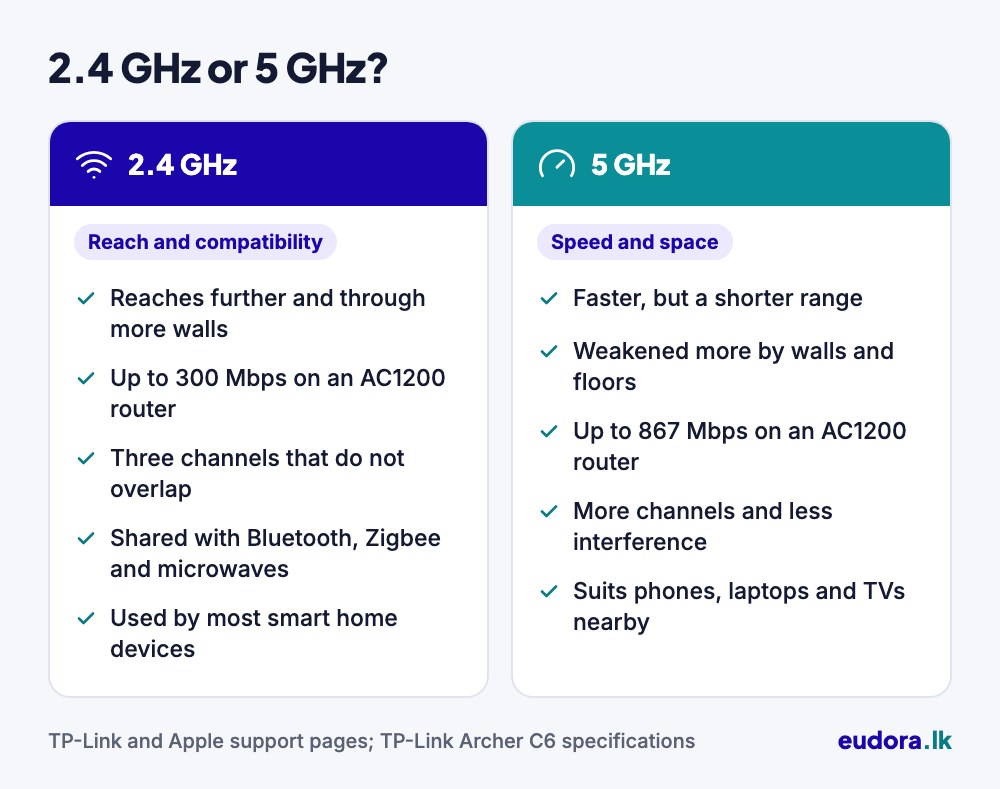
A dual-band router runs two radios at the same time, one on 2.4 GHz and one on 5 GHz. As Google notes in its Nest Wifi help, phones, tablets and laptops normally connect on one band at a time, and a device that supports only 2.4 GHz simply ignores the other.
The big difference is reach. TP-Link’s guide to the two bands explains that radio waves fade faster at higher frequencies, so 2.4 GHz reaches further. Its guide to improving Wi-Fi range adds that 5 GHz is faster but has a shorter range and is more sensitive to obstacles such as walls and floors. Apple rates metal as the worst obstacle, followed by concrete and plaster, then brick. A reinforced concrete floor slab or a steel grille between the router and a device costs a lot of signal, and 5 GHz loses more of it.
5 GHz has far more room, though. The Telecommunications Regulatory Commission of Sri Lanka (TRCSL) lists Wi-Fi at 2400 to 2483.5 MHz and in three ranges between 5150 and 5875 MHz in its Spectrum Road Map 2024 to 2029. That is 83.5 MHz at 2.4 GHz against 605 MHz at 5 GHz, more than seven times as much, and TRCSL lists Bluetooth in the same 2.4 GHz range.
Why 2.4 GHz has only three clear channels
At 2.4 GHz, Wi-Fi channel numbers are only 5 MHz apart but each channel is about 20 MHz wide, so neighbouring channels overlap. TP-Link counts just three channels that do not overlap, and if you set a 2.4 GHz channel by hand it recommends 1, 6 or 11.
That narrow band is shared by every neighbouring 2.4 GHz network, Bluetooth headsets and speakers, Zigbee sensors and microwave ovens. Apple’s recommended router settings therefore call for a 20 MHz channel width on 2.4 GHz, especially near other networks and Bluetooth devices. A 40 MHz channel would take up nearly half of the 83.5 MHz band. On 5 GHz, where interference is less of a concern, Apple suggests leaving the width on Auto.
Why most smart devices use only 2.4 GHz
The reasons are practical:
- Reach. Smart devices often sit far from the router, for example a camera on a gate at the bottom of a sloping garden, a plug on the veranda or a lock on the back door. 2.4 GHz is more likely to get through to them.
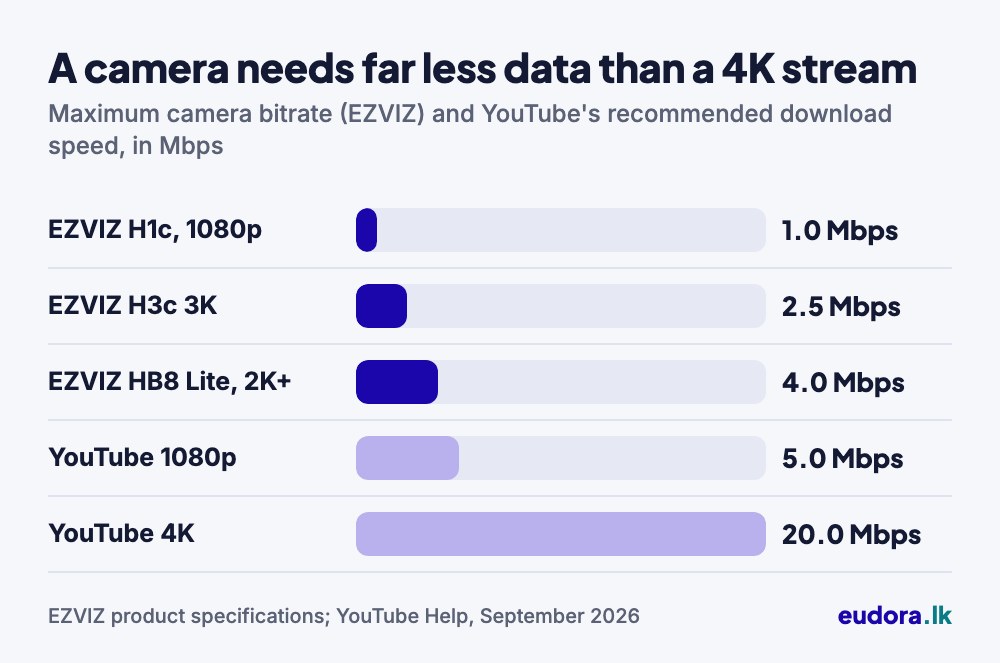
- Little data. A smart plug only exchanges short commands and status updates, and even a camera sends a modest stream. EZVIZ lists a maximum bitrate of 1 Mbps for the H1c and 2.5 Mbps for the H3c 3K, far below the 144 Mbps link rate the H3c 3K lists on 2.4 GHz.
- Simpler radios. TP-Link notes that many smart home devices use older Wi-Fi modes and security. The H1c and H3c 3K use Wi-Fi 4 (802.11n) and list WPA2 as their highest security.
A Wi-Fi 6 label does not mean 5 GHz either. Wi-Fi 6 works on both bands, and the EZVIZ HB8 Lite battery camera uses Wi-Fi 6 on 2.4 GHz only, so check the frequency range in the specifications rather than the generation on the box. Our Wi-Fi 5, 6 and 7 guide explains what each generation adds.
Here is what the manufacturers list for some of the Wi-Fi devices we stock.
| Device | Wi-Fi bands | Worth knowing |
|---|---|---|
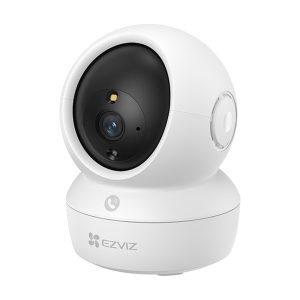
| EZVIZ H1c indoor camera | 2.4 GHz only | Wi-Fi 4, security up to WPA2 |
| EZVIZ H3c 3K outdoor camera | 2.4 GHz only | Wi-Fi 4, security up to WPA2 |
| EZVIZ HB8 Lite battery camera | 2.4 GHz only | Wi-Fi 6, security up to WPA2 |
| EZVIZ DL03 Pro smart lock | 2.4 GHz only | Joins your Wi-Fi directly, no hub |
| EZVIZ H6c Pro 3K indoor camera | 2.4 and 5 GHz | 5 GHz on channels 36 to 48 only, security up to WPA2 |
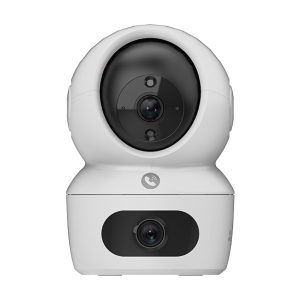
| EZVIZ H7c dual-lens indoor camera | 2.4 and 5 GHz | Wi-Fi 6 and WPA3, 5 GHz on channels 36 to 48 only |
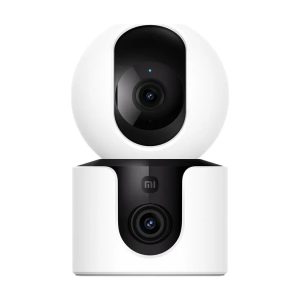
| Xiaomi C300 Dual camera | 2.4 and 5 GHz | Dual-band Wi-Fi 6 |
Why setup fails on a dual-band router
Many routers can give both bands one name and password and choose a band for each device. The general term is band steering (TP-Link calls it Smart Connect on its own routers), and mesh systems such as TP-Link Deco and Google Nest Wifi use one name for both bands. For everyday use that is the better arrangement: Apple recommends a single name across all bands and warns that separate names can stop devices connecting reliably.
Setup is where it goes wrong. TP-Link explains that most smart home setup apps need your phone on the same band as the device, but with one name the phone often joins 5 GHz, so pairing fails. EZVIZ asks you to connect your phone to 2.4 GHz before adding a 2.4 GHz-only camera, and for dual-band routers it recommends separate names for the two bands to make setup smoother.
Three other problems look similar:
- WPA3 only. Several cameras in the table list WPA2 as their highest security, so a router set to WPA3 only will not let them join. Google adds that some older WPA2 devices also struggle with WPA3 transition mode.
- Mesh hand-offs. TP-Link says many smart devices cannot roam between mesh units, and that fast roaming or beamforming can make them refuse to connect, cling to a weak signal or drop off.
- A weak signal at the final spot. A camera that pairs beside the router can still fail once it is mounted at the gate. EZVIZ suggests more than 2 Mbps of upload per camera, and its app checks the signal under Account, Settings, Device Network Tools.
How to connect a 2.4 GHz-only device
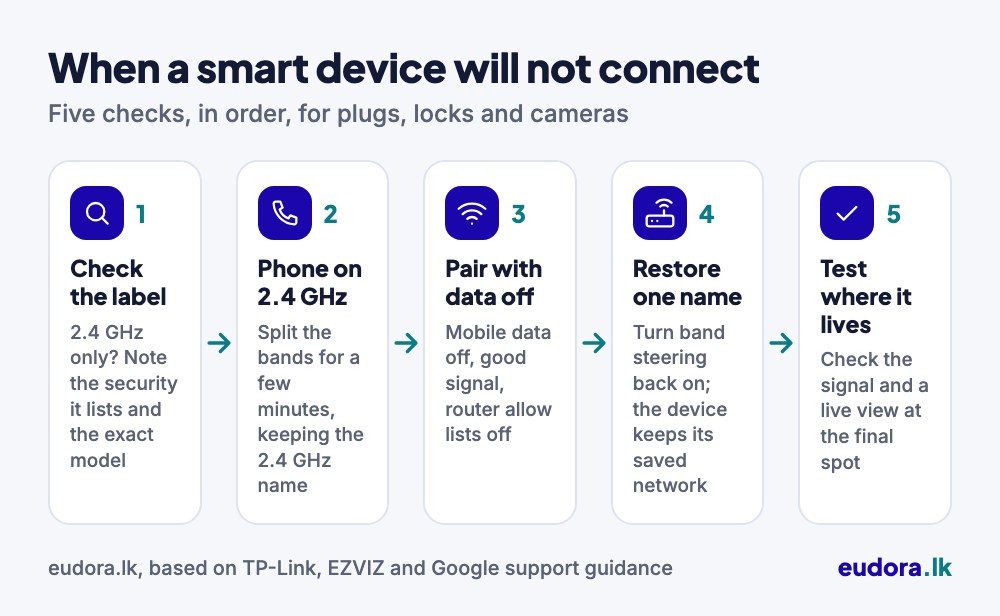
- Check the device. Find the frequency range and security on the box, the label or the maker’s specification page, and note the exact model. EZVIZ, for example, lists an original H8c Pro 4K (CS-H8c-R200) that is 2.4 GHz only and a newer version (CS-H8c-R210) that adds 5 GHz and WPA3.
- Get the phone onto 2.4 GHz. If the router shows two names, join the 2.4 GHz one. If it uses one name, switch off band steering or the 5 GHz band for a few minutes, keeping the 2.4 GHz name and password exactly as they are (TP-Link’s ISP routers then add
_5Gto the 5 GHz name). If you cannot change the router, Google suggests moving further away until the phone drops to 2.4 GHz. - Pair with mobile data off. If the app still insists you are not on 2.4 GHz, TP-Link suggests forgetting the main network on the phone and turning mobile data off during setup. For EZVIZ cameras, the pairing checklist also asks for DHCP on, IPv6 off and the router’s allow or block lists switched off.
- Restore the router. Turn band steering or the 5 GHz band back on. The device should reconnect by itself, because its network name and password have not changed.
- Test where it lives. Mount the device, then check the signal and try a live view or a few on and off commands.
Give smart devices their own 2.4 GHz network
If you add smart devices often, a second network saves repeating those steps: 2.4 GHz only, with its own name and password, just for plugs, locks and cameras. Phones and laptops stay on the main one-name network, as Apple recommends. TP-Link’s Deco app has an IoT Network setting for this, where you choose the name, password, security and bands, and TP-Link says it improves setup success and security. If Apple HomeKit or Google Home then cannot find the devices, TP-Link says to check that Device Isolation is off.
On a router without that option, you can keep the two bands under separate names, the layout EZVIZ recommends for setting up its cameras. The trade-off is that phones and laptops can no longer switch bands under one name, so join them to the 5 GHz network wherever it is strong.
Whichever layout you choose, these router settings help smart devices connect and stay connected.
| Setting | Suggested | Why |
|---|---|---|
| Bands | 2.4 GHz and 5 GHz both on | Apple advises enabling every band, and many devices need 2.4 GHz |
| Security | WPA2/WPA3 transitional | WPA3 for newer devices, WPA2 for older ones |
| 2.4 GHz channel width | 20 MHz | Fewer problems near other networks and Bluetooth |
| 2.4 GHz channel | Auto, or 1, 6 or 11 | The three channels that do not overlap |
| 2.4 GHz mode on a Wi-Fi 7 router | 802.11b/g/n/ax mixed if devices fail | TP-Link’s advice for older smart devices |
| Mesh fast roaming | Off if a device cannot connect | Many smart devices cannot roam between mesh units |
| Mesh beamforming | Off if a device keeps dropping | TP-Link’s advice for simpler smart devices |
If an older device still will not join, TP-Link suggests WPA2 only on the 2.4 GHz network it uses. Apple accepts WPA2 (AES) when the newer modes cannot be used but advises against WEP, TKIP and WPA/WPA2 mixed modes. A separate smart device network lets you make that change without lowering security for your phones and laptops.
When 5 GHz is the better choice
Dual-band cameras can use either band. 5 GHz suits a camera close to the router with few walls in between, or a flat where neighbouring networks crowd 2.4 GHz. Among the cameras we stock, the EZVIZ H6c Pro 3K, the EZVIZ H7c and the Xiaomi C300 Dual are dual-band.
Check your router’s 5 GHz channel first. EZVIZ lists 5 GHz support for the H6c Pro 3K and H7c from 5150 to 5250 MHz only, the range used by channels 36, 40, 44 and 48. If your router has chosen a higher channel, these cameras cannot join on 5 GHz. Apple notes that most routers pick a channel when they start up, so a restart after a power cut can also move the 5 GHz network to a different channel. Setting one of those four channels by hand, which TP-Link also suggests when 5 GHz is congested, avoids that; otherwise let the camera stay on 2.4 GHz.
For phones, laptops and smart TVs the advice is simpler. Apple suggests putting more of them on 5 GHz, which also leaves 2.4 GHz freer for the devices that have no choice. If 5 GHz does not reach the rooms where you need it, our slow Wi-Fi checklist covers router placement, extenders and mesh.
Would you rather hand it over? Our Smart Device Setup connects a plug, bulb, sensor, speaker or camera to your Wi-Fi and app with basic routines, and Router & Mesh Wi-Fi Setup covers placement, secure settings, guest Wi-Fi and a coverage test in every room. If you are just starting out, our smart home starter guide suggests what to automate first.
Smart Device Setup
Setup of one smart device (plug, bulb, sensor, speaker or camera) on your Wi-Fi and app, with basic routines.
- Device installation and pairing
- Wi-Fi and app setup
- Naming, rooms and sharing
- One routine or schedule per device
Smart Home Setup Package
Whole-home setup for up to 10 smart devices, including hub pairing, scenes, voice assistant and family training.
- Up to 10 devices installed and paired
- Hub and app configuration
- Scenes and automations (away, night, holiday)
- Voice assistant linking
- Training for the whole family
- 30 days of remote support
Smart Lock Installation
Fitting and setup of one smart lock, including door preparation, fingerprints, PINs and app access.
- Door compatibility check
- Lock fitting and alignment
- Fingerprint and PIN enrolment
- App and guest code setup
Video Door Phone Installation
Installation of a video door phone or doorbell: door station, indoor screen, cabling up to 20m and app setup.
- Door station mounting
- Indoor monitor installation
- Cabling up to 20m
- App answering setup
- Lock release connection where supported
Frequently asked questions
Can a 2.4 GHz-only device work on a dual-band router?
Yes. Both bands run at the same time and the device simply connects on 2.4 GHz. The usual difficulty is setup, when your phone may need to be on 2.4 GHz as well.
Should I turn off 2.4 GHz to make my Wi-Fi faster?
No. Apple recommends enabling every band your router supports, and devices that only use 2.4 GHz would lose their connection. Move phones, laptops and TVs to 5 GHz instead wherever its signal is strong.
Do 2.4 GHz smart devices slow down my 5 GHz devices?
Not on the Wi-Fi itself, at least with a single router: each band has its own radio and channel, so devices only compete for airtime with others on the same band. They still share your internet connection, so several cameras uploading video use part of your plan’s upload speed.
Should my 2.4 GHz and 5 GHz networks have different names?
One name is simpler day to day and is what Apple recommends, while EZVIZ recommends separate names for camera setup. A sensible middle way is one name for the main network plus a separate 2.4 GHz network for smart devices, or splitting the bands only while you pair a device.
Why does a device show as connected on the router but offline in its app?
TP-Link says this usually means the device has joined your network and received an address but cannot reach its maker’s cloud server. For that case, TP-Link suggests changing the DNS server set on the router.

Eudora Technology is a Kandy-based team working on CCTV, networks, IT support, cloud and websites for homes and businesses across Sri Lanka.