Why 100Hz and 144Hz Monitors Are Now the Office Standard
Smooth 100Hz to 144Hz screens used to be for gamers, but now cost about the same as basic 60Hz monitors. What higher refresh does for office work and how to choose the right screen.
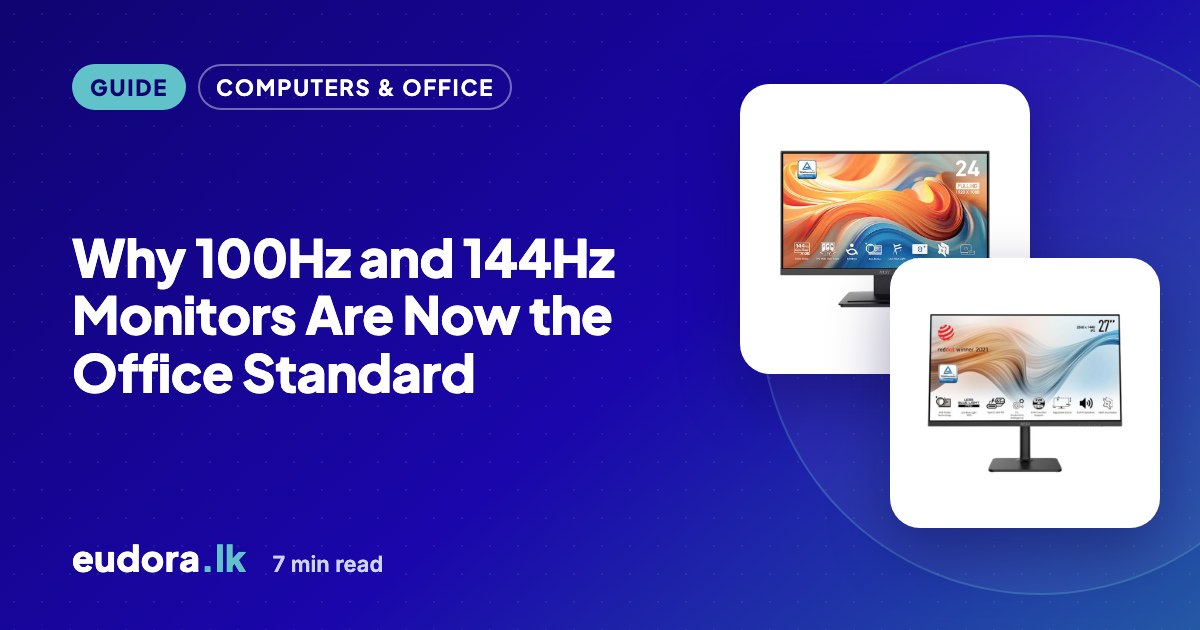
For years, almost every office monitor refreshed its picture 60 times a second, and smoother 120Hz or 144Hz screens were sold as gaming gear at a premium. That has changed quietly but completely. Panel makers now produce higher-refresh IPS panels in such volume that 100Hz is the new baseline for budget office monitors, and 120Hz to 144Hz models cost only slightly more. At the same time, phones and laptops with smooth 90Hz to 120Hz screens have made people notice how choppy a 60Hz desktop monitor feels when scrolling through a long spreadsheet or web page. This guide explains what refresh rate means, whether it matters for office work, and what else to look for when choosing a monitor for the office or home study in 2026.
Key points
- Refresh rate is how many times per second the screen redraws; higher means smoother scrolling and mouse movement.
- 100Hz is now standard on budget office monitors, and 120Hz to 144Hz costs little extra.
- For office work, the benefit is comfort and smoothness rather than speed; it does not strain the computer.
- Size and resolution matter more: 24-inch Full HD or 27-inch QHD suit most desks.
- Look for an IPS panel, flicker-free backlight, a height-adjustable stand and, for laptops, USB-C.
What refresh rate means
A monitor’s refresh rate, measured in hertz (Hz), is how many times per second it updates the image. At 60Hz, the screen redraws 60 times a second; at 144Hz, 144 times. When you scroll a document, drag a window or move the mouse, a higher refresh rate shows more in-between positions, so motion looks smoother and text stays more readable while it moves. Most people notice the jump from 60Hz to 100Hz or 120Hz immediately; the step from 120Hz to 144Hz is smaller, and beyond that the benefit for office work is minimal.
| Refresh rate | What it feels like | Best for |
|---|---|---|
| 60Hz | Visible stutter when scrolling quickly | Basic use, older monitors |
| 75Hz | Slightly smoother | Budget transitional models |
| 100Hz | Clearly smoother, comfortable | Office work, the new baseline |
| 120Hz to 144Hz | Very smooth scrolling and mouse | Office, study, casual gaming |
| 165Hz and above | Smoothest, small extra gain | Competitive gaming |
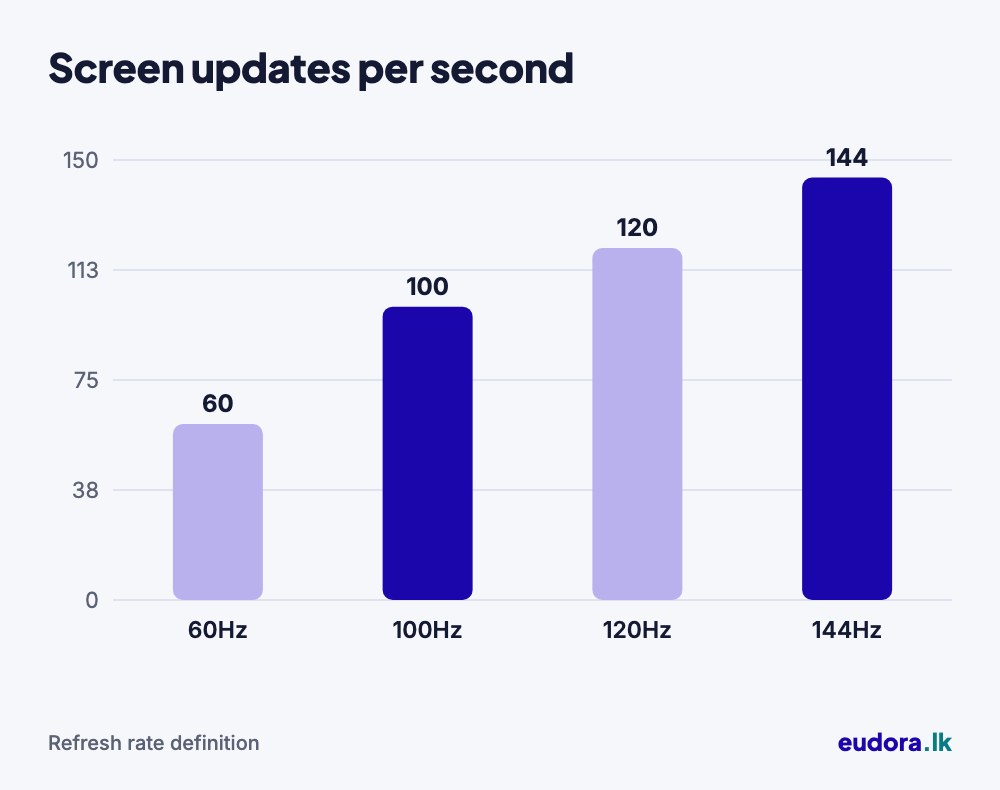
Does refresh rate matter for office work?
It is not essential, but it is a genuine quality-of-life improvement that now costs very little. Scrolling through long spreadsheets, emails, PDFs and web pages feels smoother and less tiring, and the mouse pointer is easier to follow. It does not make the computer work harder in normal office applications; almost any current computer with HDMI or DisplayPort can drive a Full HD screen at 100Hz or more. Check the cable and port, though: some older HDMI ports and cables limit higher resolutions to 60Hz, and our HDMI cable guide explains what to look for.
Prices tell the story. The MSI PRO MP225 E12VL 22-inch 120Hz monitor costs Rs 27,500, and the Lenovo L22-4e 22-inch 100Hz IPS monitor costs Rs 28,000, both entry-level prices. At 24 inches, the Lenovo L24-4C 144Hz with speakers costs Rs 33,000 and the MSI PRO MP243L E14 144Hz costs Rs 35,000.
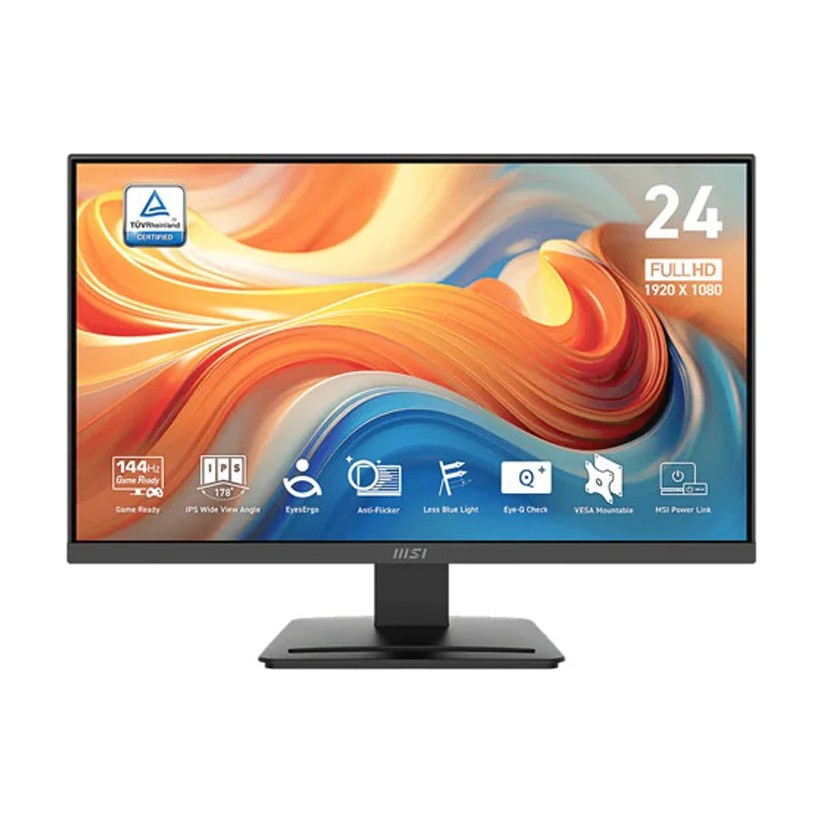
Size and resolution first
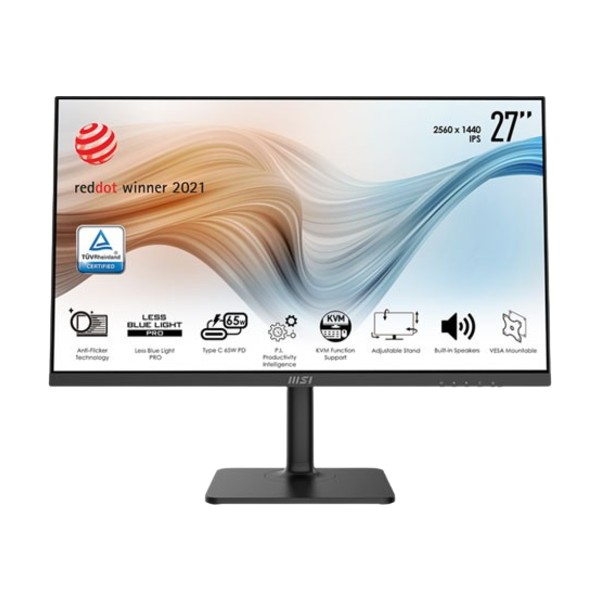
Before refresh rate, choose the right size and resolution for your desk and eyes. A 22-inch or 24-inch Full HD (1920×1080) screen is the comfortable standard for most office desks and gives sharp text at normal viewing distance. At 27 inches, Full HD text starts to look slightly soft, so QHD (2560×1440) is better if you can afford it, giving more workspace for side-by-side documents. The MSI PRO MP273 E14A 27-inch 144Hz Full HD monitor at Rs 48,200 is a good value large screen for general office use, while the MSI Modern MD272QXP 27-inch QHD 100Hz at Rs 101,500 offers sharper text and more workspace.
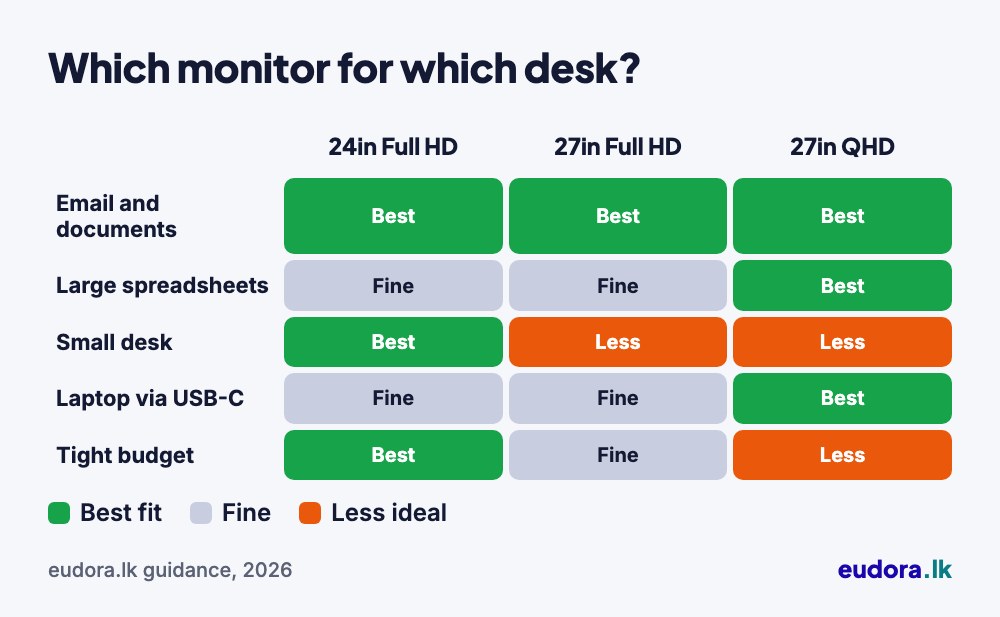
Eye comfort features
Comfort matters more than any specification when you look at a screen for eight hours. IPS panels give consistent colours and wide viewing angles, so the screen looks the same when you shift position. Flicker-free backlights avoid the rapid brightness pulsing that bothers some people; most current office monitors advertise this. Low blue light modes warm the colours for evening work. A matte anti-glare finish handles bright offices better than glossy screens; our article on OLED laptop screens explains why glossy panels reflect more.
Tip: Set the top of the screen at or slightly below eye level, about an arm’s length away, and reduce brightness to match the room. Then follow the 20-20-20 rule: every 20 minutes, look at something 20 feet away for 20 seconds.
Stands and ergonomics
Many budget monitors only tilt, which means stacking books under them to reach the right height. A height-adjustable stand, or a monitor arm using the VESA mount on the back, makes it easy to set the screen correctly, which helps prevent neck and shoulder strain. If several people share a desk, adjustability is especially valuable. Our desk ergonomics guide covers chair, keyboard and screen positioning together.
USB-C monitors for laptop users
If you use a laptop at your desk, a USB-C monitor can simplify everything. One USB-C cable carries video, data and power, so plugging in a single cable charges the laptop, connects the screen and gives access to any USB devices connected to the monitor. The MSI Modern MD272QXP provides up to 65W of USB-C power, enough for most thin laptops. Check that your laptop’s USB-C port supports display output; our USB-C guide explains how to tell.
Two monitors or one large one?
Two monitors remain one of the most affordable productivity upgrades for office work, letting you keep email or a reference document on one screen and work on the other. Two Lenovo L24-4C 144Hz monitors come to Rs 66,000. A single 27-inch QHD screen gives a similar amount of workspace without a gap in the middle, which some people prefer for wide spreadsheets. Our dual monitor guide explains the setup, and our mini PC guide covers compact computers that can drive two screens.
Why prices fell
Higher-refresh panels became affordable because of scale. As gaming monitors, laptops and TVs moved to faster panels, factories produced so many that the cost difference over 60Hz panels nearly disappeared, and monitor makers began using them across their office ranges. That is good news for buyers: a monitor bought today will feel modern for years, while a 60Hz model already feels dated next to a phone or recent laptop. Memory and storage prices have moved the other way this year, as our memory prices article explains, but monitor prices have stayed stable.
Checking your settings after setup
A surprising number of people buy a 100Hz or 144Hz monitor and run it at 60Hz without realising, because Windows does not always pick the highest refresh rate automatically. After connecting a new monitor, open Settings, then System, Display, Advanced display, and choose the highest refresh rate listed. If it is not offered, try a different cable or port, such as DisplayPort or a newer HDMI cable, and update the graphics driver. While you are there, check the resolution is set to the screen’s native resolution and adjust text scaling so text is comfortable to read. On a Mac, the refresh rate option is under System Settings, Displays.
Monitors for shared and hot-desk offices
In offices where staff move between desks, consistency matters. Choosing the same monitor model for every desk means laptops connect the same way everywhere, display settings carry over, and a spare unit can replace a faulty one quickly. A USB-C monitor at each hot desk lets people plug in one cable and start working, while HDMI or DisplayPort inputs remain available for mini PCs or older laptops. Keep a labelled spare cable of each type in the office, and make cable management part of the setup, so cables are not pulled loose or damaged when people move around. If the office also uses a meeting-room TV for presentations, the same principles of known ports and spare cables save time before every meeting.
Making the decision
For most office desks, a 24-inch Full HD IPS monitor at 100Hz to 144Hz with a flicker-free backlight is the sweet spot of comfort and value. Choose 27-inch QHD for more workspace, USB-C if you use a laptop, and a height-adjustable stand or arm if your budget allows. Avoid buying new 60Hz monitors now, since the smoother models cost almost the same. Our team can recommend and set up monitors for your office, including dual-screen desks, as part of our PC and laptop setup service at Rs 3,500.
-
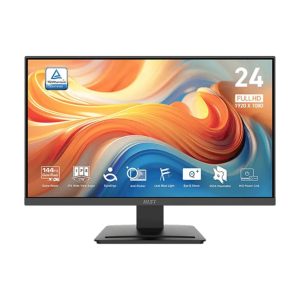 MSI
MSI PRO MP243L E14 24-inch Monitor – Full HD IPS, 144Hz
Rs 35,000 Add to cart -
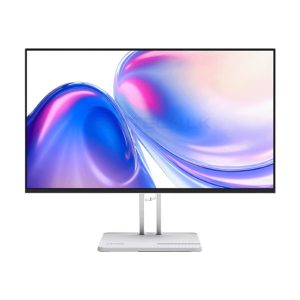 Lenovo
 L24-4C 24-inch Monitor – Full HD IPS, 144Hz, Speakers
Rs 33,000 Add to cart -
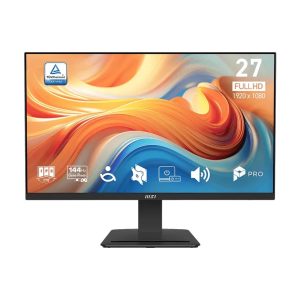 MSI
MSI PRO MP273 E14A 27-inch Monitor – Full HD IPS, 144Hz, Speakers
Rs 48,200 Add to cart -
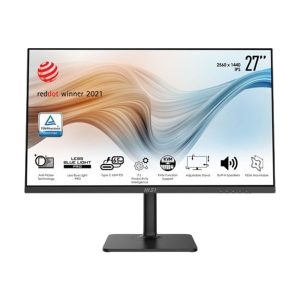 MSI
MSI Modern MD272QXP 27-inch Monitor – WQHD IPS, 100Hz, USB-C 65W
Rs 101,500 Add to cart
Frequently asked questions
Is 144Hz worth it for office work?
It is a comfort improvement rather than a necessity, but it now costs very little more than 60Hz or 100Hz.
Does my computer need a graphics card for 144Hz?
No. Integrated graphics can drive a Full HD office monitor at 144Hz over a suitable port and cable.
Why does my 144Hz monitor show 60Hz?
Windows may not select the highest rate automatically, or the cable or port may limit it. Check Advanced display settings.
What size monitor is best for office work?
24-inch Full HD for most desks, or 27-inch QHD for more workspace.
Are high refresh monitors better for eyes?
Smoother motion can feel more comfortable. Flicker-free backlights, correct brightness and breaks matter more.

Eudora Technology is a Kandy-based team working on CCTV, networks, IT support, cloud and websites for homes and businesses across Sri Lanka.