How to Set Up Two Monitors for Work: Screens, Cables and Settings
Which monitors to pair, how to connect two screens to a desktop or laptop, the cables and docks that work, and the Windows settings that make it comfortable.
A second monitor is one of the most affordable ways to make desk work faster and less frustrating. With two screens you can keep a spreadsheet open beside an email, a video call beside your notes, or a design beside the client’s brief, instead of constantly switching windows on one small screen. For accounts staff, developers, designers and anyone who works from home, it quickly becomes hard to go back. Setting it up is usually simple, but the details matter: which ports your computer has, whether a laptop supports two external screens, and which monitors look right side by side. This guide covers choosing the screens, connecting them to desktops and laptops, and the settings and desk layout that make two monitors comfortable all day.
Key points
- Two identical monitors are easiest to work with, because size, height and colour match.
- Check your computer’s video outputs first: HDMI, DisplayPort, USB-C with video, or older VGA.
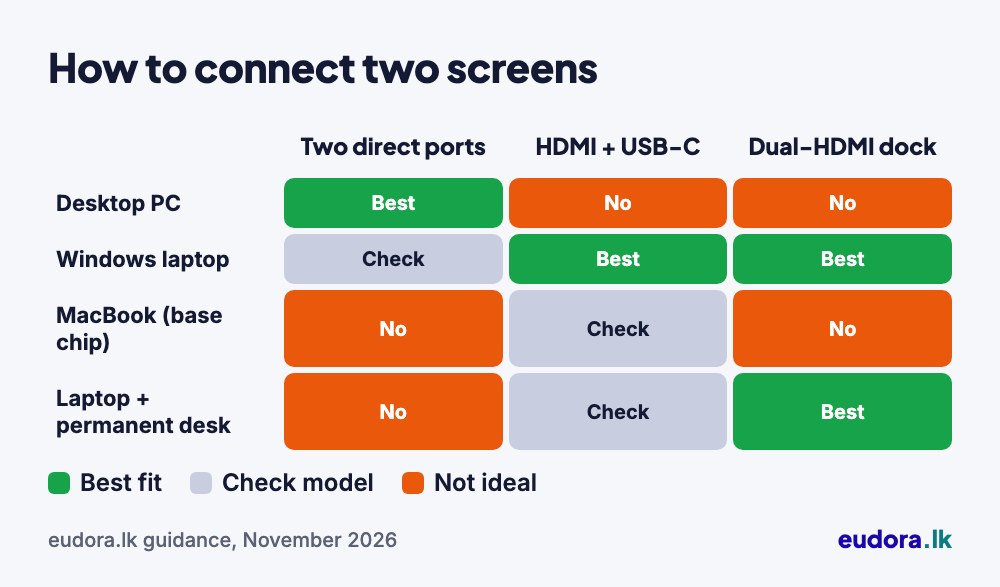
- Most desktops drive two screens from their built-in graphics; most Windows laptops drive one external screen directly and two through a dock.
- Some MacBooks support only one external display, so check the model before buying a second screen.
- Place the main screen straight ahead and the second to one side, both at eye level and an arm’s length away.
Choosing the monitors
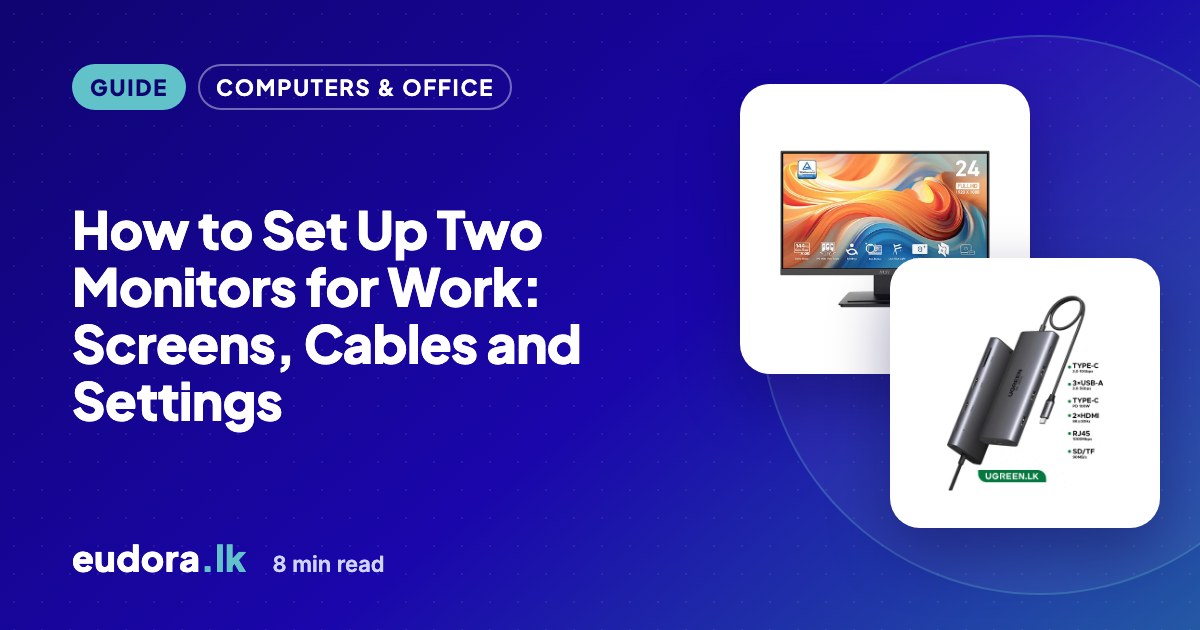
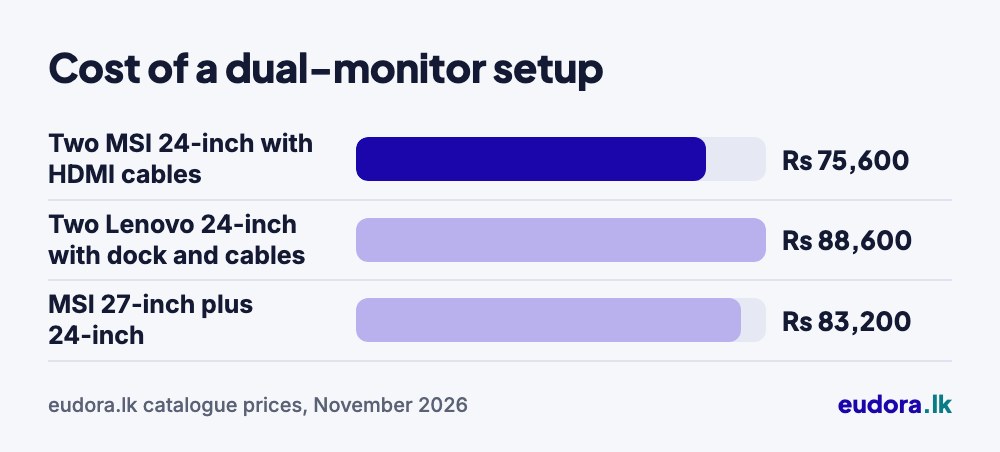
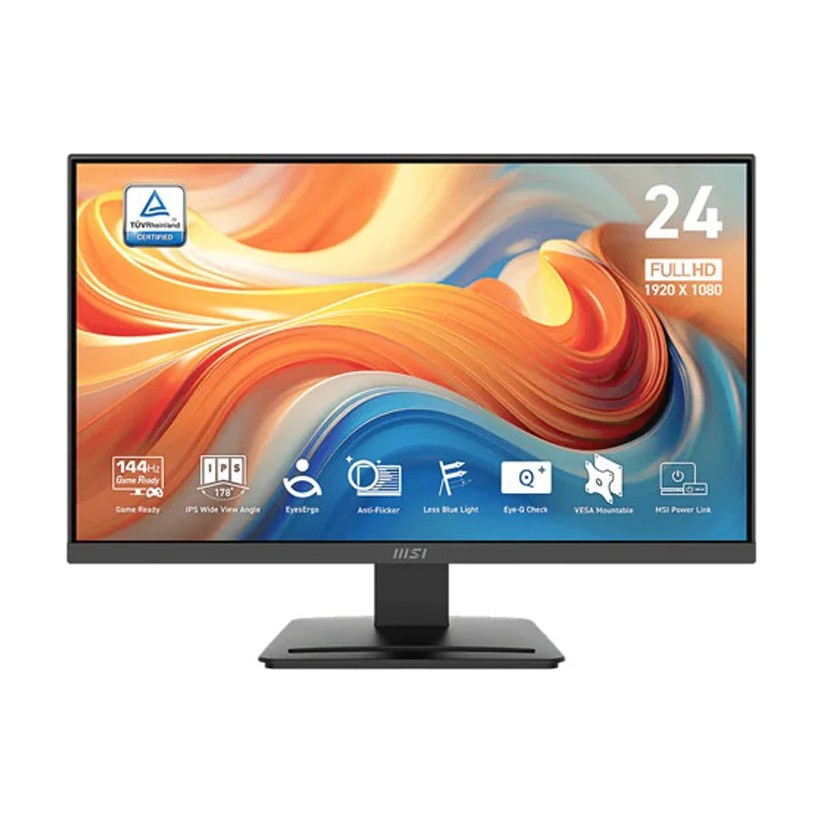
The simplest and most comfortable setup is two identical monitors side by side. The bezels line up, the colours match, and a window dragged from one to the other stays the same size. Two MSI PRO MP243L 24-inch Full HD 144Hz monitors cost Rs 70,000, or Rs 75,600 with two 2-metre HDMI cables.
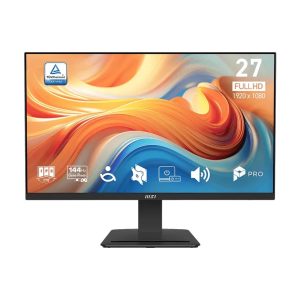
Mixing sizes works too. A popular option is a 27-inch main screen with a 24-inch screen at the side for email and chat; an MSI PRO MP273 and an MP243L together cost Rs 83,200. When mixing, choose screens with the same resolution or the same pixel density, otherwise text looks noticeably larger on one than the other and windows jump in size as they cross.
| Monitor | Size and resolution | Refresh rate | Inputs | Price |
|---|---|---|---|---|
| Lenovo L22-4e | 22-inch Full HD IPS | 100Hz | HDMI, VGA | Rs 28,000 |
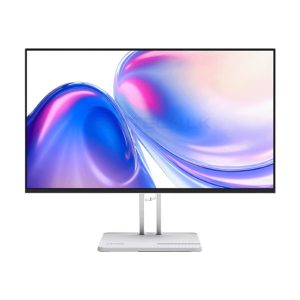
| Lenovo L24-4C | 24-inch Full HD IPS, speakers | 144Hz | HDMI and more | Rs 33,000 |
| MSI PRO MP243L | 24-inch Full HD IPS | 144Hz | HDMI and more | Rs 35,000 |
| MSI PRO MP273 | 27-inch Full HD IPS, speakers | 144Hz | HDMI and more | Rs 48,200 |
| MSI Modern MD272QXP | 27-inch WQHD IPS | 100Hz | USB-C with 65W charging, HDMI, DisplayPort | Rs 101,500 |
For office work, 24-inch Full HD is the comfortable standard at normal desk distance. A 27-inch screen at Full HD shows larger text rather than more space; at WQHD (2560 × 1440) it shows noticeably more of a spreadsheet or document. Our monitor buying guide explains size, resolution and refresh rate in more detail.
Check your computer’s outputs
Before buying anything, look at the back of the desktop or the sides of the laptop and identify the video outputs. This decides which cables or adapters you need.
| Output | How to recognise it | Notes |
|---|---|---|
| HDMI | Flat, wider at the top | Most common; one screen per port |
| DisplayPort | Flat with one cut corner | Common on business desktops; can daisy-chain on some monitors |
| USB-C or Thunderbolt with video | Small oval port with a DisplayPort or lightning symbol | Can carry video, data and charging |
| VGA | Blue, trapezoid, 15 pins | Older analogue standard; softer picture |
Connecting two monitors to a desktop
Most current desktops can drive at least two monitors from the processor’s built-in graphics, using two ports on the back such as HDMI plus DisplayPort, or two HDMI. Use the ports on the motherboard panel, not the ones on a separate graphics card if one is fitted; when a graphics card is installed, connect both monitors to the card instead.
If the desktop has only one HDMI and a VGA port, connect one monitor by HDMI and the other by VGA, or use a HDMI to VGA converter such as the UGREEN MM105 at Rs 3,500 for an older monitor with only a VGA input. Our desktop versus laptop guide lists the outputs to look for when buying a new office PC.
Connecting two monitors to a laptop
Laptops are where it gets more interesting. A typical Windows laptop has one HDMI port and one or two USB-C ports. If a USB-C port supports video, you can connect one monitor by HDMI and the other through a USB-C to HDMI cable such as the UGREEN MM142 at Rs 6,200, which supports 4K at 60Hz.
For a tidy permanent desk, a docking station is better. The UGREEN Revodok 10-in-1 at Rs 17,000 provides two HDMI outputs, Gigabit Ethernet, USB ports and charging pass-through over one USB-C cable. A complete laptop dual-screen desk with two Lenovo L24-4C monitors, the dock and two HDMI cables comes to Rs 88,600. Our guide to hubs and docks explains the differences.
Warning: MacBooks with base Apple silicon chips support a limited number of external displays, and some support only one. They also show the same picture on both screens through many dual-HDMI docks, rather than extending the desktop. Check Apple’s specifications for your exact model before buying a second monitor.
Windows display settings
Once both monitors are connected, Windows usually detects them automatically. Press Windows key and P to choose between Duplicate, which shows the same picture on both, and Extend, which gives you one wide desktop across both screens. For working, choose Extend.
- Arrange the screens: in Settings, then System, then Display, drag the monitor icons to match their physical positions, so the mouse moves naturally between them.
- Choose the main display: select the screen in front of you and tick “Make this my main display” so the taskbar clock and new windows appear there.
- Check resolution: each monitor should be set to its recommended resolution.
- Set the refresh rate: under Advanced display, choose the highest rate, such as 144Hz, for smoother scrolling.
- Match scaling: if text sizes differ between screens, adjust the scale on one until they look similar.
- Use Snap: drag a window to the edge or press Windows key and an arrow to fill half a screen.
Desk layout and comfort
Two monitors take more desk space and more head movement, so position them with care. If you use one screen most of the time, place it directly in front of you and the second one to the side, angled slightly inwards. If you use both equally, place them so the join between them is directly in front of you. The top of each screen should be at or slightly below eye level, about an arm’s length away. Our guide to desk ergonomics covers keyboard and mouse position as well.
A laptop can act as the second screen: raise it on a stand to the same height as the monitor beside it and use an external keyboard and mouse. That gives a dual-screen setup with only one monitor to buy.
Getting the most from two screens
Two monitors only help if you use the space well. A simple habit is to give each screen a job: the main screen for the work you are doing, and the side screen for reference material, email, chat or a video call. Windows remembers which screen each application was on, so once set up, Outlook opens on the side screen and your spreadsheet in front every morning.
Windows 11’s Snap layouts make this faster. Hover over a window’s maximise button to choose a layout, such as two columns or a large window with two smaller ones, and Windows arranges the rest. On a wide or second screen, three columns work well for comparing documents. For video calls, put the camera on the main screen, or position a separate webcam centrally, so you are looking towards the people you are talking to rather than away to one side.
Finally, keep cables tidy. Two monitors, a laptop, a dock and chargers quickly produce a tangle that collects dust and makes it hard to unplug the right thing. A few cable ties or a cable tray under the desk keeps everything manageable.
Troubleshooting
If a second monitor shows “No signal”, check the monitor’s input selection first; most problems are as simple as that. Then try a different cable and port, and update the graphics driver through Windows Update or the computer maker’s support page. If a laptop shows the same picture on both screens through a dock, the laptop probably does not support multiple displays over that connection. If one screen flickers, replace the cable; cheap HDMI cables are a common cause. Our IT support team can set up dual monitors on site or remotely.
-
 MSI
MSI PRO MP243L E14 24-inch Monitor – Full HD IPS, 144Hz
Rs 35,000 Add to cart -
 UGREEN
 Revodok 10-in-1 USB-C Docking Hub – Dual HDMI, Gigabit Ethernet, 100W PD
Rs 17,000 Add to cart -
 Lenovo
 L24-4C 24-inch Monitor – Full HD IPS, 144Hz, Speakers
Rs 33,000 Add to cart -
 MSI
MSI PRO MP273 E14A 27-inch Monitor – Full HD IPS, 144Hz, Speakers
Rs 48,200 Add to cart
Frequently asked questions
Can any laptop run two external monitors?
Many Windows laptops can, using HDMI plus USB-C or a dock. Some, including many MacBooks with base Apple silicon chips, support only one. Check your model.
Do the two monitors need to be the same?
No, but identical monitors are more comfortable. If they differ, match the resolution or pixel density.
Will two monitors slow down my computer?
Not noticeably for office work. Built-in graphics handle two Full HD screens easily.
Should I use HDMI or DisplayPort?
Either works well for office monitors. Use whichever ports your computer and monitors share.
Can I use a TV as a second monitor?
Yes, over HDMI, but TVs are usually too large for desk distance and text can look less sharp.

Eudora Technology is a Kandy-based team working on CCTV, networks, IT support, cloud and websites for homes and businesses across Sri Lanka.