Portable SSD or External Hard Drive? Choosing Backup Storage in 2026
Portable SSDs are fast and tough; external hard drives hold more for less. How they compare on speed, durability, price per terabyte and security, and which to choose.
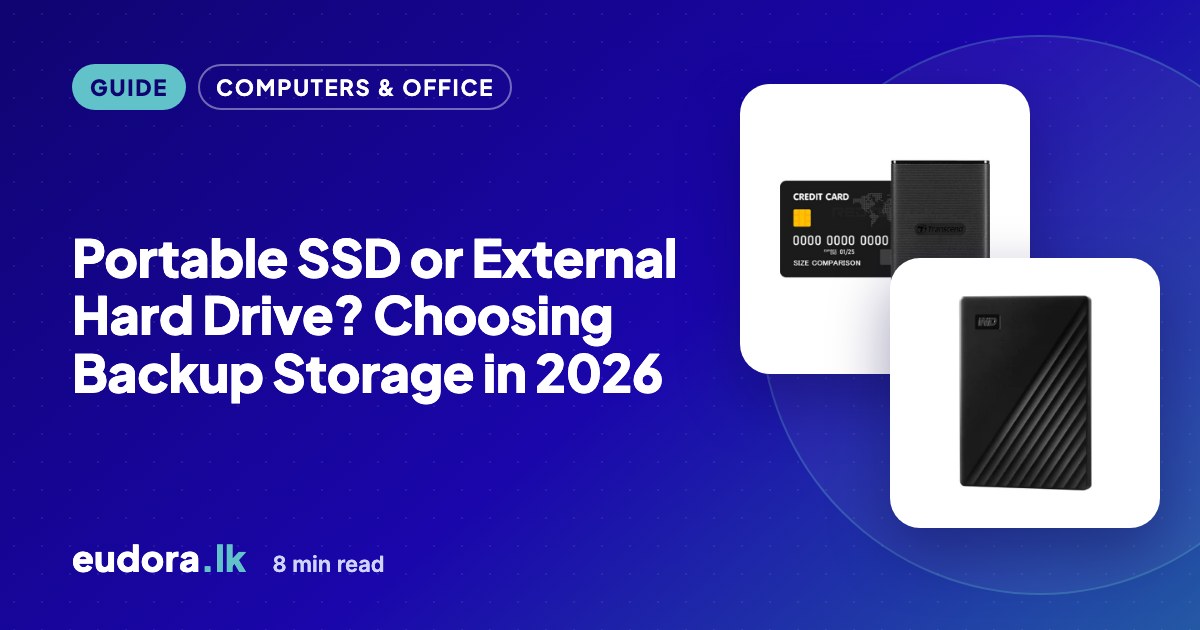
Every computer needs a copy of its important files somewhere else. For most homes and small offices that copy lives on an external drive, and in 2026 there are two very different kinds on the shelf: portable SSDs, which are small, fast and shock resistant, and external hard drives, which hold far more for the money. Picking the wrong one is not a disaster, but it can mean slow backups, a drive that fails when dropped, or paying twice as much as you needed to. This guide compares the two on the things that matter and helps you choose.
Key points
- Portable SSDs have no moving parts, so they are faster, lighter and tougher when carried around.
- External hard drives cost far less per terabyte: about Rs 15,625 per terabyte for a 4TB WD My Passport against Rs 67,900 for a 1TB portable SSD in our catalogue.
- For backups that stay on a desk, a hard drive is usually the better value. For carrying work between places, an SSD is safer.
- Hardware encryption protects data if a drive is lost; use it for business files.
How they differ inside
An external hard drive contains a spinning magnetic disk and a read-write head that moves across it, just like the drives in older laptops. It is mature technology that stores a lot of data cheaply, but the moving parts make it sensitive to knocks while running and limit its speed.
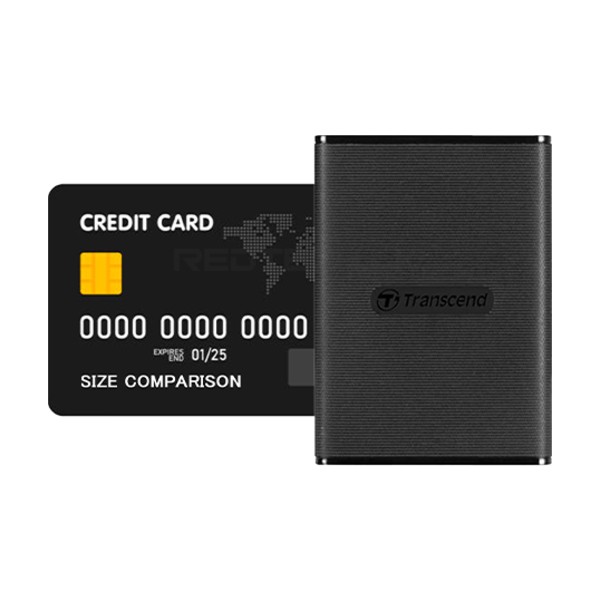
A portable SSD uses flash memory chips, the same kind used in modern laptop drives and memory cards. There is nothing to spin, so it reads and writes much faster, starts instantly, makes no noise and copes far better with being dropped in a bag. The trade-off is price per terabyte, which rose during 2026 as memory chips were diverted to AI servers; our post on SSD and memory prices explains why.
| Feature | Portable SSD | External hard drive |
|---|---|---|
| Speed | Fast, several times quicker in practice | Modest, limited by the spinning disk |
| Durability when carried | High; no moving parts | Lower; drops while running can damage it |
| Size and weight | Pocket-sized | Larger and heavier |
| Price per terabyte | High | Low |
| Largest common sizes | 1 to 4TB | 1 to 5TB portable; more for desktop models |
| Best for | Carrying work, editing video, fast transfers | Backups, photo and video archives |
Speed: what the USB labels mean
USB labels are confusing. The number that matters is the maximum signalling rate of the connection. USB 3.2 Gen 1 runs at 5Gbps; USB 3.2 Gen 2 at 10Gbps; faster versions exist on newer laptops. Real transfer speeds are always lower than these figures because of overheads.
A portable hard drive rarely uses all of even a 5Gbps connection, because the spinning disk is the bottleneck. A portable SSD on a 10Gbps port, like the Transcend ESD270C, can move large files several times faster. In everyday terms, copying a full phone’s worth of photos and videos might take a few minutes on an SSD and noticeably longer on a hard drive. For nightly backups that run while you sleep, the difference rarely matters.
Tip: Plug a fast drive into a fast port. A USB-C port marked 10Gbps or with a lightning-bolt symbol is usually the quickest on a laptop. A USB 2.0 port or a cheap hub can slow any drive to a crawl.
Price per terabyte
This is where hard drives win clearly. The chart below uses our current prices.
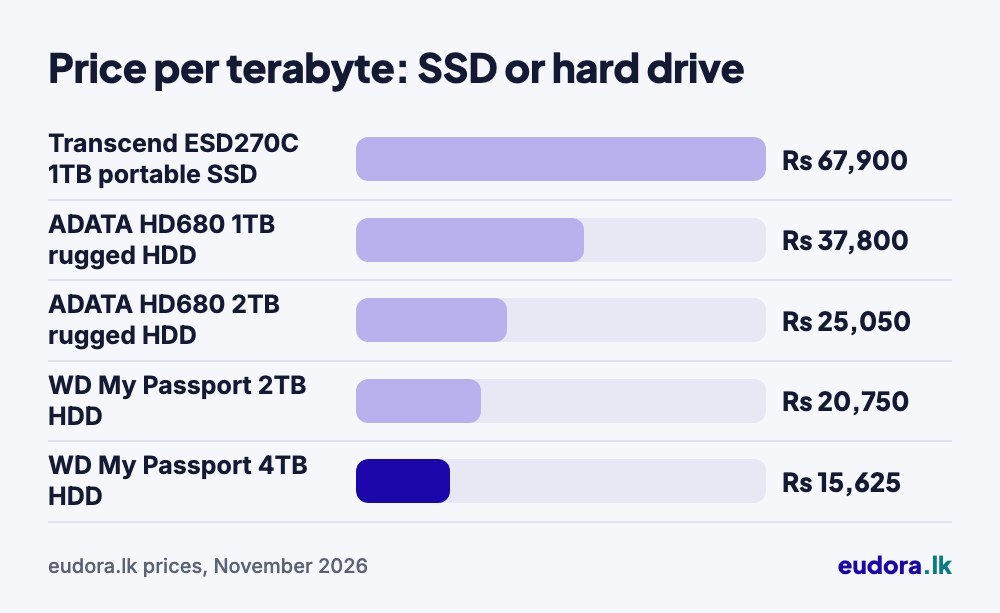
For a family that wants to back up years of photos and videos, a 4TB hard drive offers far more room for the money than any portable SSD. For a professional who carries a working project between office, home and client sites every day, the SSD’s speed and toughness are worth paying for.
Phones, tablets and cameras
Many people now take most of their photos and videos on a phone, and phone storage fills quickly. Portable SSDs with USB-C, such as the Transcend ESD270C, can plug straight into many Android phones and recent iPhones and iPads with USB-C ports, letting you move videos off the phone without a computer. Use the phone’s Files app to copy them across, then delete them from the phone once you have checked the copy opens.
Hard drives can work with phones too, but they draw more power and many phones cannot supply enough through the port, so an SSD is the more dependable choice for this job. For cameras and drones that use memory cards, a card reader and an external drive make a quick routine for clearing cards after each event.
Which to choose: three common situations
| Situation | Our suggestion | Why |
|---|---|---|
| Family photo and video archive at home | 4TB external hard drive, plus a second for rotation | Most space for the money; speed is not critical |
| Office documents and accounts backup | Two 2TB encrypted hard drives, rotated, plus cloud | Encryption and an off-site copy matter more than speed |
| Video editor or photographer on the move | Portable SSD for working files, hard drive for archive | Speed and toughness while working; low cost for storage |
Durability and the Sri Lankan climate
Both types dislike heat and humidity, which are hard to avoid in much of Sri Lanka. A few habits make a large difference to how long any external drive lasts.
- Keep drives out of direct sun and hot cars.
- Store them in a dry place, ideally in a closed box with a silica gel pack during the monsoon.
- Do not move a hard drive while it is running, and wait for it to stop spinning before unplugging.
- Always use “Eject” or “Safely remove” before pulling the cable.
- Unplug drives during thunderstorms; lightning surges can travel through a computer’s USB ports.
Rugged hard drives such as the ADATA HD680 add shock-absorbing casings, which help in a bag or a site office. They are still hard drives inside, so treat them gently while running.
Security: encryption for lost drives
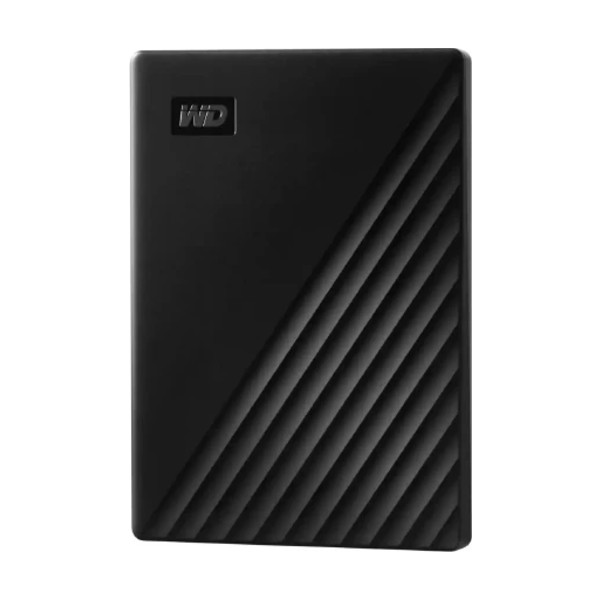
External drives are small and easy to lose. If yours holds customer records, payroll files or ID copies, encryption should be on. Some drives, including the WD My Passport range, offer 256-bit AES hardware encryption with a password, so the data is unreadable without it. You can also use software encryption built into the operating system, such as BitLocker To Go on Windows Pro editions or FileVault-formatted drives on macOS.
For businesses, Sri Lanka’s Personal Data Protection Act expects personal data to be protected with appropriate security. An unencrypted drive left in a three-wheeler is exactly the kind of incident to avoid; our post on the PDPA deadline explains the wider obligations.
Write the password down and keep it somewhere safe, separate from the drive, such as a password manager. With hardware encryption there is no way to recover the data if the password is forgotten, which is exactly what makes it secure. For a business, make sure at least two trusted people can unlock the backup drives.
A simple backup plan with external drives
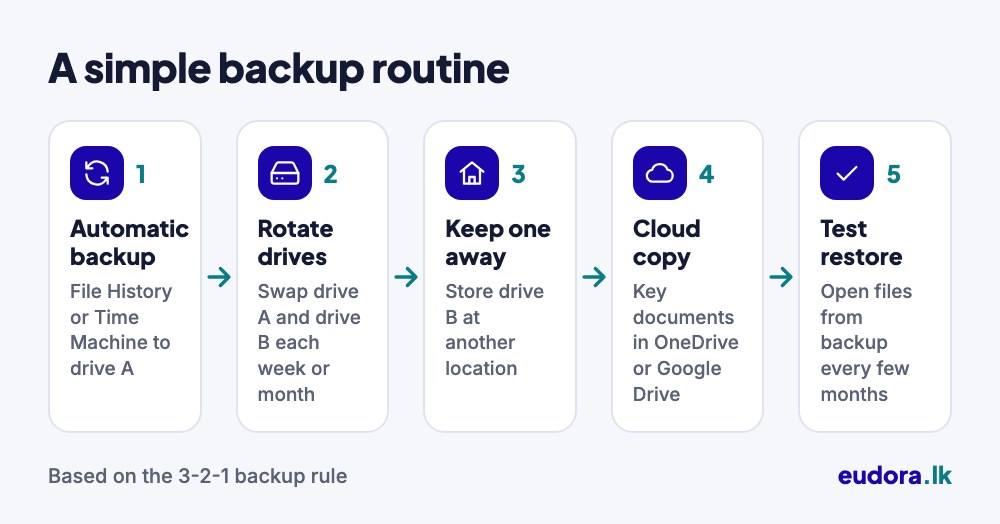
An external drive is only a backup if the files are on it and also somewhere else. The widely used 3-2-1 rule suggests three copies of important data, on two different types of storage, with one copy away from the building. Our 3-2-1 backup guide explains it fully. For a home or small office, a practical version looks like this.
- Turn on automatic backup. Use File History on Windows or Time Machine on a Mac, pointed at an external hard drive.
- Rotate two drives. Keep one at home or the office and one somewhere else, swapping them every week or month. Two 2TB WD My Passport drives cost Rs 83,000.
- Add a cloud copy for the most important documents, using OneDrive, Google Drive or a managed backup service.
- Test a restore every few months by opening some files from the backup.
If you are replacing an old laptop, its hard drive can become a backup drive too. A UGREEN US221 enclosure at Rs 4,200 turns a 2.5-inch laptop drive into a USB external drive, as long as the drive is healthy.
-
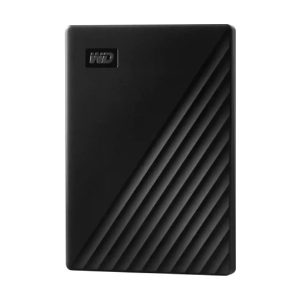 Western Digital
WD My Passport 2TB Portable Hard Drive – USB 3.2, Hardware Encryption
Rs 41,500 Add to cart -
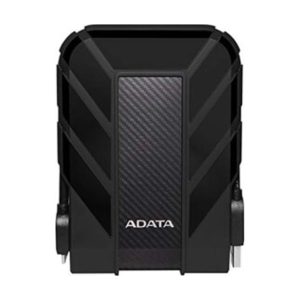 ADATA
ADATA HD680 2TB Rugged Portable Hard Drive – USB 3.2, AES Encryption
Rs 50,100 Add to cart -
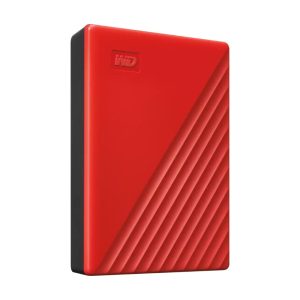 Western Digital
WD My Passport 4TB Portable Hard Drive – USB 3.2, Hardware Encryption
Rs 62,500 Add to cart -
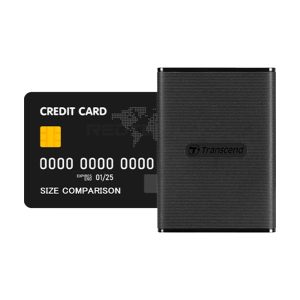 Transcend
 ESD270C 1TB Portable SSD – USB-C 10Gbps
Rs 67,900 Add to cart
For offices with several computers, a network storage device can back up everyone automatically; our NAS guide covers that option, and our storage and backup service can set up drives, schedules and cloud copies for you.
Frequently asked questions
Is a portable SSD more reliable than an external hard drive?
It survives knocks and drops far better because it has no moving parts. Both can fail, so neither should be your only copy of important files.
How long do external hard drives last?
Many last five years or more with gentle use, but failure can happen at any age. Replace drives that make clicking noises or show errors, and keep a second copy.
Can I use one drive for both Windows and Mac?
Yes, if it is formatted as exFAT, which both systems read and write. Some drives come formatted for Windows only and need reformatting, which erases them.
Should I leave my backup drive plugged in all the time?
For automatic backups it is convenient, but a drive that is always connected can be hit by ransomware or a power surge along with the computer. Rotating a second drive that stays unplugged is safer.
Is a USB flash drive good enough for backups?
Only for a few documents. Flash drives are small and easy to lose, and cheap ones are not designed for heavy use. Use a proper external drive for regular backups.

Eudora Technology is a Kandy-based team working on CCTV, networks, IT support, cloud and websites for homes and businesses across Sri Lanka.