How to Back Up Your Phone Photos So You Never Lose Them
Phones get lost, stolen and dropped in water. How to back up photos and videos with Google Photos, iCloud or OneDrive, plus drives and a home NAS.
For most families, the phone is now the only camera, and it holds years of irreplaceable photos and videos: children growing up, weddings, trips, parents and grandparents. It also holds them in one fragile place. Phones are lost on buses, stolen, dropped in water, cracked beyond repair or simply fill up until something has to be deleted. Many people assume their photos are backed up because they once turned something on, only to discover the free storage filled up two years ago. This guide explains how to back up phone photos properly with Google Photos, iCloud or OneDrive, how to add a second copy at home on a drive or NAS, and how to check it is actually working.
Key points
- Turn on automatic cloud backup on every phone and check it has not stopped because storage is full.
- Free storage is small: 15GB shared across a Google account, 5GB on iCloud and 5GB on a Microsoft account.
- Microsoft 365 Family gives up to six people 1TB of OneDrive each, which covers most families’ photos.
- Keep a second copy at home on a portable drive or NAS, following the 3-2-1 backup rule.
- Check your backup a few times a year by opening photos from the cloud on another device.
Why phone photos get lost
Phones fail in many ways, and the photos usually exist only on the phone itself. Even phones with automatic backup turned on often stop backing up quietly, when free storage fills up, when backup is limited to Wi-Fi and the phone rarely connects, or when the account password changes. Water damage and theft give no warning. The goal is simple: every photo should exist in at least two places within a day or two of being taken.
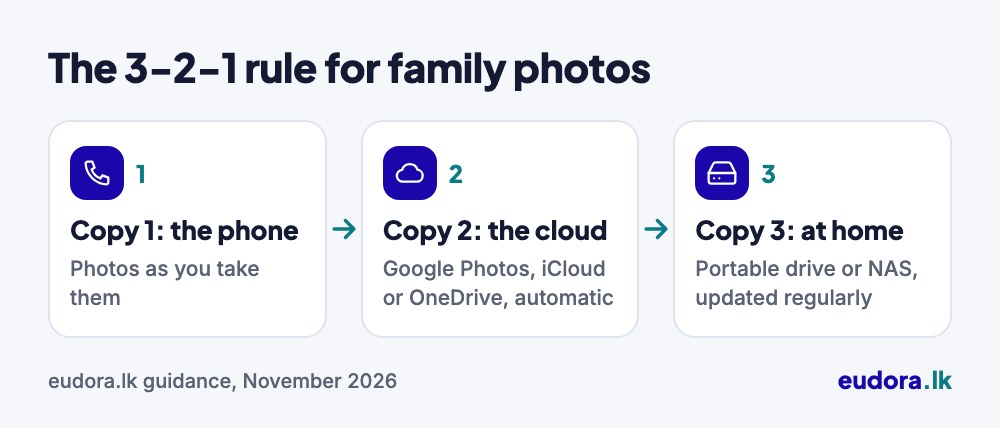
The 3-2-1 rule for families
Professional backup advice is summed up as 3-2-1: three copies of important data, on two different types of storage, with one copy somewhere else. For phone photos that can be as easy as the phone itself, a cloud backup and a copy on a drive or NAS at home. Our 3-2-1 backup guide explains the idea in detail for businesses, but it applies just as well to family photos.
Google Photos (Android and iPhone)
Google Photos is the default on most Android phones and also works on iPhone. Open the app, tap your profile picture, then Google Photos settings, then Backup, and turn it on. Choose whether to back up over mobile data or only on Wi-Fi, and include folders such as WhatsApp Images and Screenshots under “Back up device folders” if you want them.
Every Google account includes 15GB of free storage, shared between Gmail, Google Drive and Google Photos. That fills quickly: a few thousand photos and some videos can use it all. When it is full, backup stops. Check storage at one.google.com and either buy more Google One storage, choose the Storage saver quality option for new photos, or move older photos elsewhere.
Warning: “Free up space” in Google Photos deletes photos from the phone that are already backed up. Make sure backup is complete and working before using it.
iCloud Photos (iPhone and iPad)
On an iPhone, open Settings, tap your name, then iCloud, then Photos, and turn on Sync this iPhone. Apple gives 5GB free, shared with device backups, which is rarely enough for photos. iCloud+ plans add 50GB, 200GB, 2TB or more, and can be shared with up to five family members through Family Sharing. “Optimise iPhone Storage” keeps full-quality originals in iCloud and smaller versions on the phone, which frees space but means the phone alone is not a full copy.
OneDrive and Microsoft 365 Family
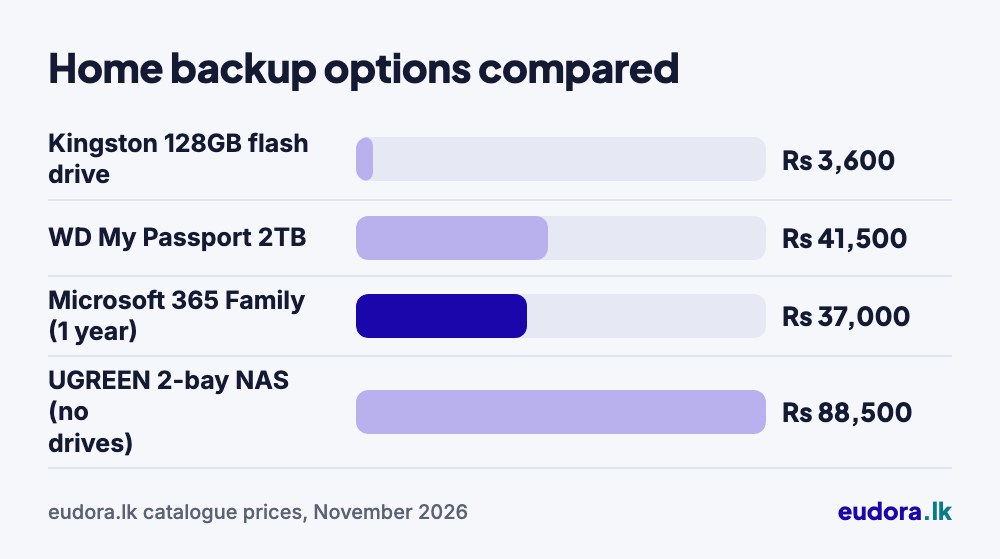
OneDrive’s camera upload works on Android and iPhone: open the OneDrive app, go to Settings, then Camera upload, and turn it on. A free Microsoft account has 5GB. Microsoft 365 Family at Rs 37,000 a year includes 1TB of OneDrive storage for each of up to six people, about Rs 6,167 per person, plus the Office apps. For a family with several phones and years of photos, that is often the most generous option, and photos are also visible on the family’s Windows laptops in File Explorer.
| Service | Free storage | Works on | Best for |
|---|---|---|---|
| Google Photos | 15GB shared with Gmail and Drive | Android, iPhone, web | Android users, mixed families |
| iCloud Photos | 5GB shared with device backups | iPhone, iPad, Mac, Windows app | All-Apple families |
| OneDrive | 5GB, or 1TB each with Microsoft 365 | Android, iPhone, Windows, web | Families who use Windows and Office |
A second copy at home
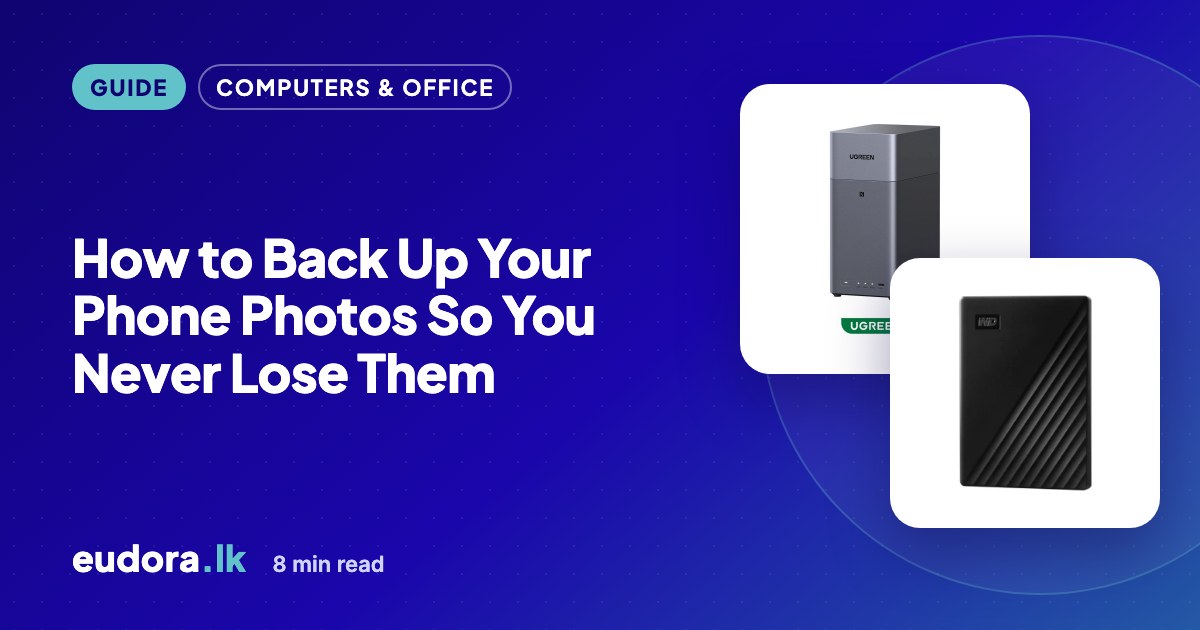
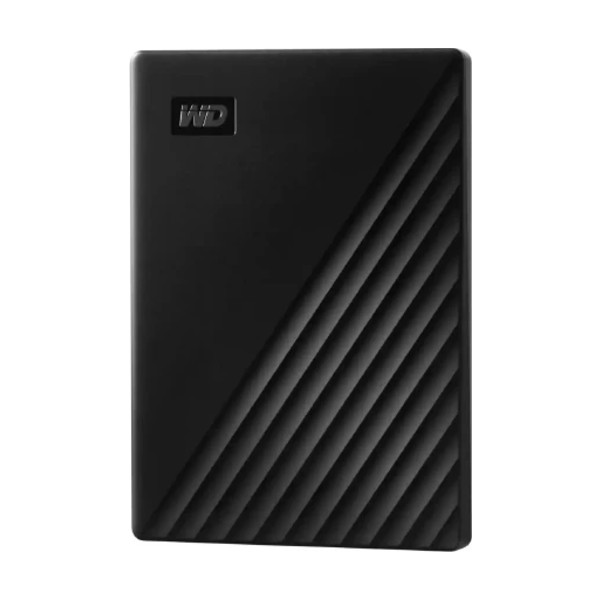
Cloud backup protects against a lost phone, but accounts can be locked, subscriptions lapse and mistakes get synced. A copy at home adds protection. The simplest option is copying photos to a portable drive every month or two. Connect the phone to a laptop with a cable and copy the DCIM folder, or download from Google Photos or iCloud on the computer and copy to the drive. A WD My Passport 2TB at Rs 41,500 holds hundreds of thousands of photos, and its hardware encryption protects them if the drive is lost. A fast Transcend ESD270C portable SSD at Rs 67,900 makes large video copies quicker.
For quick transfers straight from the phone, a dual USB-C flash drive or a standard USB 3.2 flash drive with an adapter works well. A Kingston DataTraveler Exodia M 128GB costs Rs 3,600 and is handy for moving a trip’s photos to a laptop or a relative. Flash drives are small and easy to lose, so treat them as a transfer tool, not the main backup. Our portable SSD versus hard drive guide compares the options.
A home NAS: automatic backup for the whole family
A network-attached storage device (NAS) is a small box with hard drives that sits next to the router and acts like a private cloud. Its phone app backs up photos automatically from every family member’s phone whenever they are on home Wi-Fi, with no monthly fee for storage. The UGREEN NASync DH2300 at Rs 88,500 is a two-bay NAS designed for home photo libraries; with two 2TB Seagate IronWolf drives mirrored, so one drive can fail without losing anything, it comes to Rs 170,900. Our NAS guide explains mirroring and setup.
A NAS is still one location, so pair it with a cloud backup or an occasional copy kept at a relative’s house. Put it on a small UPS to protect it during power cuts; our UPS buying guide explains sizing.
Organising years of old photos
Most families also have photos scattered across old phones in drawers, memory cards from digital cameras and folders on old laptops. Gather them while the devices still work: charge each old phone, sign in to the same Google, Apple or Microsoft account and let it back up, or copy its photo folder to your laptop with a cable. Copy camera memory cards the same way. Once everything is in one library, the cloud service’s search and face grouping make it far easier to find a particular event than scrolling through separate devices, and the old devices can then be wiped and recycled.
WhatsApp photos and videos
Many family photos arrive through WhatsApp and are easily lost. On Android, include the WhatsApp Images and WhatsApp Video folders in Google Photos backup. On iPhone, turn on “Save to Photos” in WhatsApp settings so received media appears in the Photos app and backs up with everything else. WhatsApp’s own chat backup to Google Drive or iCloud restores chats on a new phone, but it is not a photo library you can easily browse.
Check that it is working
A backup you have never checked is only a hope. A few times a year, open Google Photos, iCloud or OneDrive on a laptop or another phone and confirm that photos from the last week are there. Check storage is not full. Try opening a random older video. If you use a portable drive, plug it in and open a folder. When you change phones, confirm the new phone is backing up before wiping the old one; our guide to wiping a phone before selling it explains the right order.
Tip: Set a reminder on the first of every quarter to check backups and copy new photos to your home drive. It takes ten minutes and protects years of memories.
-
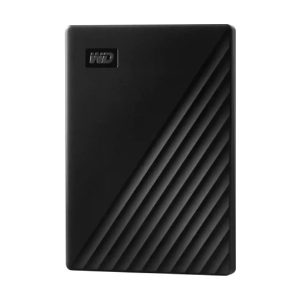 Western Digital
WD My Passport 2TB Portable Hard Drive – USB 3.2, Hardware Encryption
Rs 41,500 Add to cart -
 Microsoft
 365 Family – 12-Month Subscription (up to 6 people)
Rs 37,000 Add to cart -
 UGREEN
 NASync DH2300 2-Bay NAS – Personal Cloud Storage (Diskless)
Rs 88,500 Add to cart -
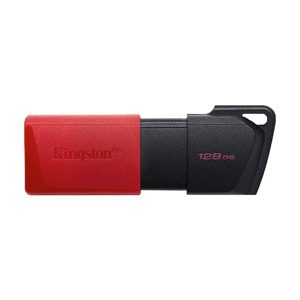 Kingston
 DataTraveler Exodia M 128GB USB 3.2 Flash Drive
Rs 3,600 Add to cart
Getting help
If you have years of photos scattered across old phones, memory cards and laptops, gathering them into one backed-up library is worth an afternoon. Our team can set up cloud backup on family phones, configure a home NAS and copy old devices with our backup system setup service at Rs 14,900. See our storage and backup services.
Frequently asked questions
Are my photos backed up automatically?
Only if backup is turned on in Google Photos, iCloud or OneDrive and there is free storage. Check the app’s backup status.
What happens when free cloud storage is full?
Backup stops quietly. Buy more storage, reduce quality for new photos, or move older photos to another backup.
Is a memory card or flash drive a safe backup?
It helps as a transfer or extra copy, but small cards and drives are easy to lose and can fail. Use them alongside cloud or a portable drive.
Do I need a NAS?
Not necessarily. A cloud plan plus a portable drive works well. A NAS suits families with several phones and large photo libraries.
How do I back up WhatsApp photos?
Include WhatsApp folders in Google Photos on Android, or turn on Save to Photos in WhatsApp on iPhone.

Eudora Technology is a Kandy-based team working on CCTV, networks, IT support, cloud and websites for homes and businesses across Sri Lanka.