Give an Old Laptop New Life With an SSD Upgrade
How to tell which SSD your laptop takes, how much faster it will be, how to move Windows across and when an upgrade is not worth it.
If a laptop takes two minutes to start, freezes when you open a browser and makes a faint clicking or whirring sound, the problem is very often its hard drive, not its processor. Replacing a mechanical hard drive with a solid-state drive is the single most effective upgrade for an older laptop. Start-up drops from minutes to seconds, applications open almost instantly, and the laptop runs cooler and quieter. Even laptops that already have an early SSD can benefit from a larger, faster one. This guide explains how to find out which drive your laptop takes, which SSD to buy, how to move Windows across, and when an upgrade is not worth the money.
Key points
- Moving from a hard drive to any SSD makes an old laptop feel several times faster for everyday work.
- Check whether your laptop has an M.2 slot (NVMe or SATA) or only a 2.5-inch bay before buying.
- PCIe 4.0 NVMe drives work in older PCIe 3.0 slots, just at the older slot’s speed.
- You can clone the old drive or reinstall Windows fresh; a fresh install often runs better.
- Do not spend money upgrading a laptop that cannot run Windows 11.
Why an SSD makes such a difference
A hard drive stores data on spinning platters read by a moving head, so every file it opens involves physical movement. Starting Windows means reading thousands of small files from all over the disk, which is exactly what hard drives do worst. An SSD has no moving parts and reads small files hundreds of times faster.
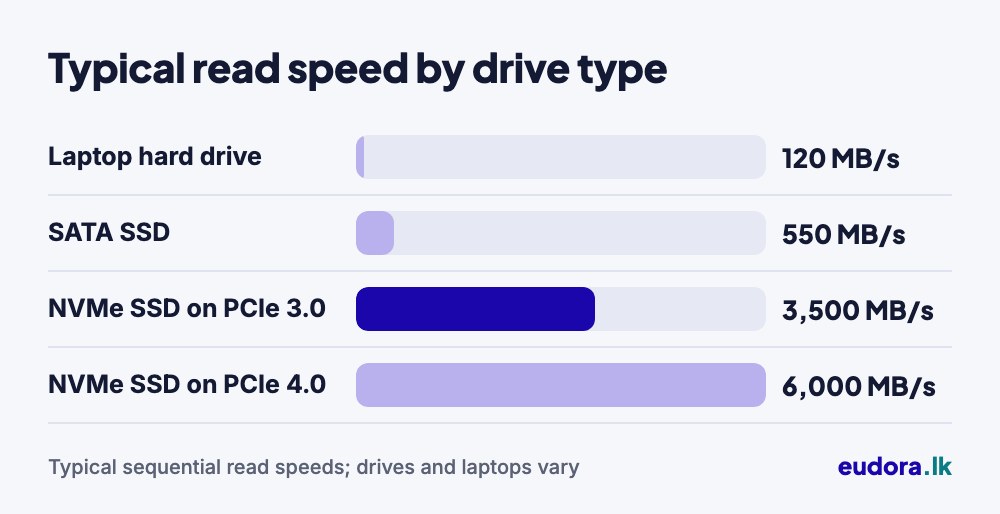
Sequential speed, the headline number on the box, tells only part of the story. For everyday responsiveness, random access to small files matters more, and here even a basic SATA SSD is dramatically faster than any laptop hard drive. A typical laptop with a hard drive takes a minute or more to reach a usable desktop; the same laptop with an SSD is often ready in 15 to 20 seconds.
Which drive does your laptop take?
Laptops use three kinds of internal storage connection, and some have more than one. The model number, usually on a sticker underneath, is the quickest way to check; search the manufacturer’s support site for the specifications or service manual.
| Connection | What it looks like | Speed | Example drive |
|---|---|---|---|
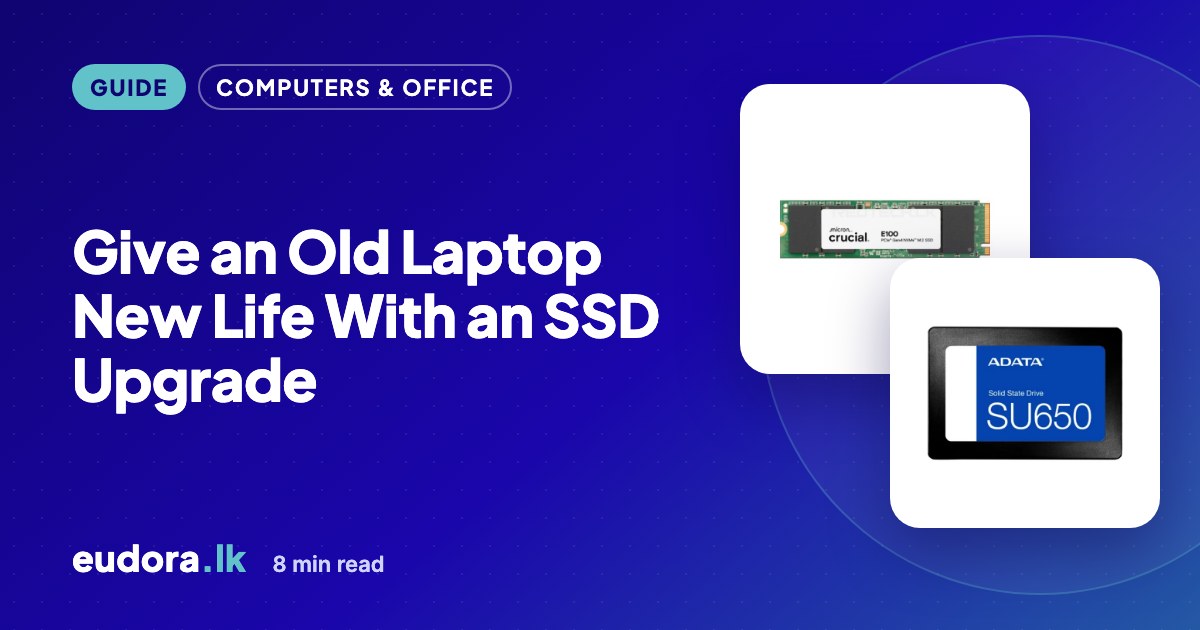
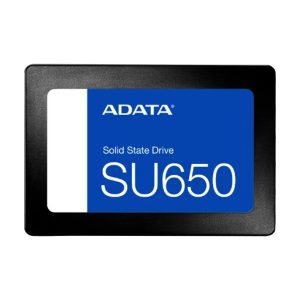
| 2.5-inch SATA bay | A drive about the size of a phone, in a caddy | Up to about 550MB/s | ADATA SU650 512GB, Rs 27,700 |
| M.2 SATA | A stick 22mm wide, usually 80mm long, two notches | Up to about 550MB/s | Check carefully; less common now |
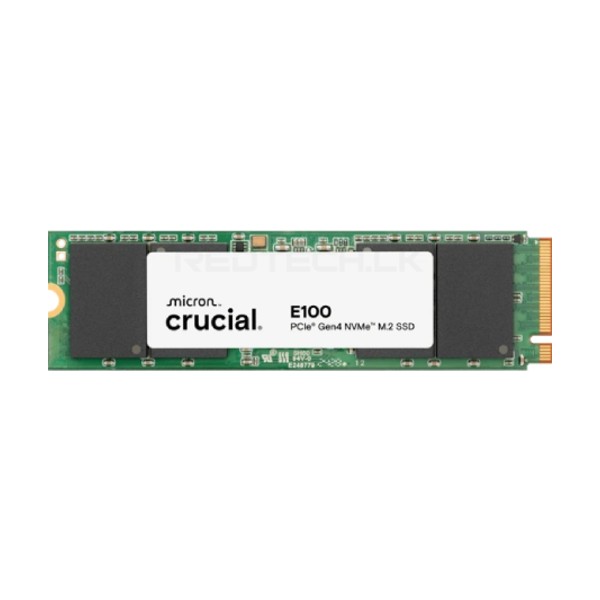
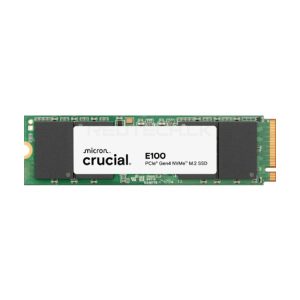
| M.2 NVMe (PCIe) | Same stick shape, one notch (M key) | 3,500 to 7,000MB/s | Crucial E100 480GB, Rs 33,000 |
Many laptops from around 2016 to 2019 have both a 2.5-inch bay with a hard drive and an empty M.2 slot. In that case you can add an NVMe SSD for Windows and keep the hard drive for files, or replace the hard drive entirely. Newer thin laptops usually have a single M.2 NVMe slot and no 2.5-inch bay.
Note: An M.2 SATA slot will not accept an NVMe drive, and an NVMe-only slot will not accept an M.2 SATA drive, even though they look similar. Check the specification rather than the shape.
Choosing the SSD
For an older laptop with a PCIe 3.0 slot, a current PCIe 4.0 drive works perfectly well; it simply runs at the slot’s maximum of around 3,500MB/s. There is no need to pay extra for the fastest drives, because the laptop cannot use the extra speed. Choose on capacity, warranty and price.
| Drive | Type | Capacity | Price | Best for |
|---|---|---|---|---|
| ADATA Ultimate SU650 | 2.5-inch SATA | 512GB | Rs 27,700 | Laptops with only a 2.5-inch bay |
| Crucial E100 | M.2 NVMe PCIe 4.0 | 480GB | Rs 33,000 | Most upgrades |
| Crucial E100 | M.2 NVMe PCIe 4.0 | 1TB | Rs 51,500 | Photos, video and larger libraries |
| Kingston NV3 | M.2 NVMe PCIe 4.0 | 1TB | Rs 58,000 | Newer laptops with PCIe 4.0 |
| Lexar NQ790 | M.2 NVMe PCIe 4.0 | 1TB | Rs 58,200 | Fastest option for PCIe 4.0 laptops |
For most people, 480 to 512GB is enough for Windows, Office and everyday files, especially if photos live in OneDrive or Google Photos. Choose 1TB if you keep a large photo or video library on the laptop or play games. Our article on SSD and memory prices in 2026 explains why prices have moved this year.
Clone or reinstall?
There are two ways to get Windows onto the new drive. Cloning copies everything from the old drive, including Windows, applications, settings and files, so the laptop looks exactly as before. Reinstalling puts a fresh copy of Windows on the new drive, and you then reinstall applications and copy files back.
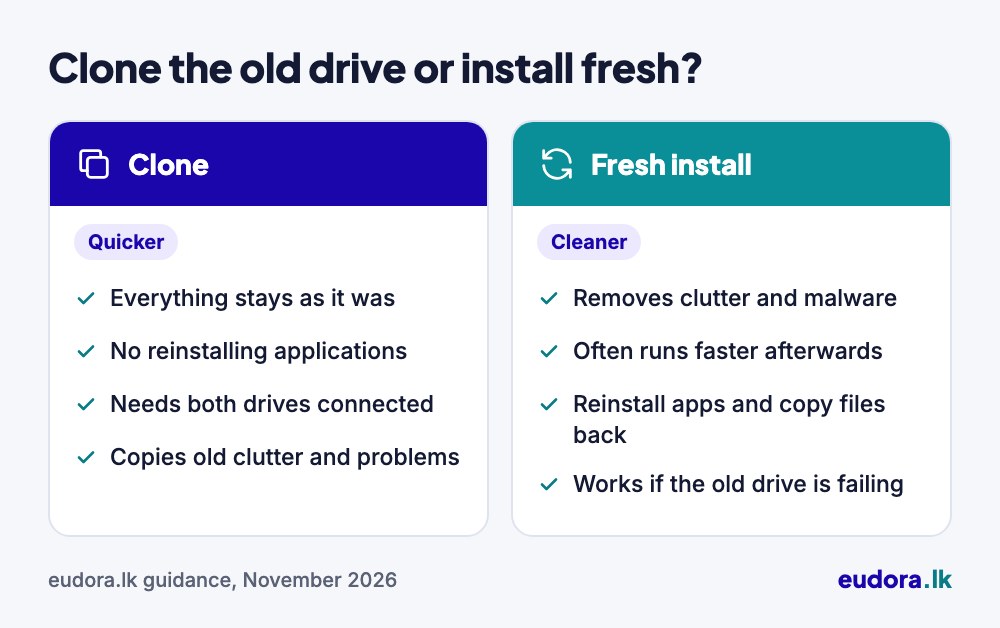
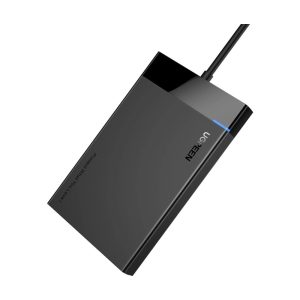
Cloning is quicker and suits a laptop that is otherwise working well. You need a way to connect both drives at once: an M.2 slot plus a 2.5-inch bay, or a USB enclosure such as the UGREEN US221 at Rs 4,200 for 2.5-inch drives. Most SSD makers provide a free cloning tool for their drives.
A fresh install is better for a laptop that was slow, cluttered or had malware, and it is the only option if the old drive is failing. Windows 11 can be installed from a USB flash drive made with Microsoft’s Media Creation Tool, and it reactivates automatically on the same laptop because the licence is tied to the hardware.
Tip: Whichever method you choose, back up your files first, to an external drive or cloud storage. A drive upgrade is routine, but it is still the moment when a mistake can lose data.
Doing the upgrade
On most laptops the work takes 30 to 60 minutes. Shut down fully, unplug the charger, remove the base screws and gently release the base panel with a plastic tool. Disconnect the battery connector before touching anything else. Remove the old drive, fit the new one, reconnect the battery and close the case. Keep track of screws; they are often different lengths.
After starting up, check in Device Manager or the manufacturer’s tool that the SSD is recognised, run Windows Update, and confirm the drive is running in the right mode. Some older laptops need a BIOS update before they recognise newer NVMe drives, so check the manufacturer’s support page first.
If you would rather not open the laptop yourself, our technicians fit the drive, move Windows and files across and test everything. The Crucial E100 480GB plus our PC setup service comes to Rs 36,500.
Add memory at the same time
If the laptop is already open, check the memory. Windows 11 with a modern browser, Microsoft Teams and a few documents open comfortably uses 6 to 8GB, so a laptop with 4GB spends much of its time swapping data between memory and the drive. An SSD makes that swapping less painful, but adding memory removes it. Many business laptops from 2017 onwards have two memory slots, and going from 4GB to 8GB or 16GB is a small extra cost alongside the drive.
To check, open Task Manager, choose Performance and then Memory. It shows how much is installed, how many slots are used and the memory speed. Buy the same type, usually DDR4 for laptops from this period, and ideally the same speed. If Task Manager shows one slot in use out of two, you can add a second module; if both slots are full, replace one or both with larger modules. Some thin laptops have memory soldered to the board, in which case what you have is what you keep.
Reuse the old drive
An old hard drive that is still healthy makes a handy backup disk. Fit it in a USB enclosure and use it with Windows File History or a backup program. A 2.5-inch SATA SSD with an enclosure comes to Rs 31,900 if you would rather have a fast portable drive. If the old drive showed warning signs, wipe it and recycle it instead; our hard drive health guide explains the signs.
When an upgrade is not worth it
An SSD fixes slow storage, not every kind of slowness. Before buying, check that the laptop can run Windows 11, since unsupported Windows 10 laptops should be replaced, not upgraded. Check the memory too: 4GB is too little for Windows 11 and a modern browser, and if memory is soldered and cannot be increased, an SSD alone will not make the laptop pleasant to use. A failing screen, worn keyboard and dead battery together can make a new laptop the better buy. Our desktop versus laptop guide and laptop buying guide help with that decision.
Frequently asked questions
Will an SSD make my old laptop faster?
If it currently has a hard drive, yes, dramatically for start-up and opening applications. It will not speed up a slow processor or add memory.
Is NVMe worth it over SATA?
If the laptop has an NVMe slot, yes; prices are similar. If it only has a 2.5-inch bay, a SATA SSD is the right choice.
Do I need to reinstall Windows?
No, you can clone the old drive. A fresh install often gives a cleaner, faster result.
Will Windows still be activated?
Yes. Windows 11 reactivates automatically on the same laptop after a drive change.
How long do SSDs last?
For normal home and office use, a modern SSD typically outlasts the laptop. Keep backups anyway.

Eudora Technology is a Kandy-based team working on CCTV, networks, IT support, cloud and websites for homes and businesses across Sri Lanka.