Keyboards, Mice and Desk Ergonomics: Setting Up a Comfortable Workspace
Hours at a keyboard add up. How to set up your desk, chair and screen, which keyboard and mouse suit home and office work, and simple habits that prevent aches and strain.
Most office workers spend six to eight hours a day at a computer, and many people working from home do so at a dining table or on a sofa with a laptop. Over months and years, a poorly arranged desk leads to sore wrists, stiff necks and aching backs. The good news is that most of the fixes cost little: the right height for the chair and screen, a separate keyboard and mouse for laptop users, and a few habits through the day. This guide covers how to set up a comfortable workspace, which keyboards and mice suit different needs, and what to look for when equipping an office.
Key points
- Set the chair so your forearms are roughly level with the desk and your feet rest flat, then raise the screen so its top is at or slightly below eye level.
- Laptop users should add a separate keyboard and mouse and raise the laptop, rather than hunching over the built-in keyboard.
- Wired combos suit fixed desks on a budget; wireless combos tidy the desk; silent models suit shared offices and home calls.
- Keep the mouse close to the keyboard, at the same height, so your arm is not stretched out to the side.
- Short, frequent breaks and changes of position matter as much as any equipment.
Setting up the desk, chair and screen
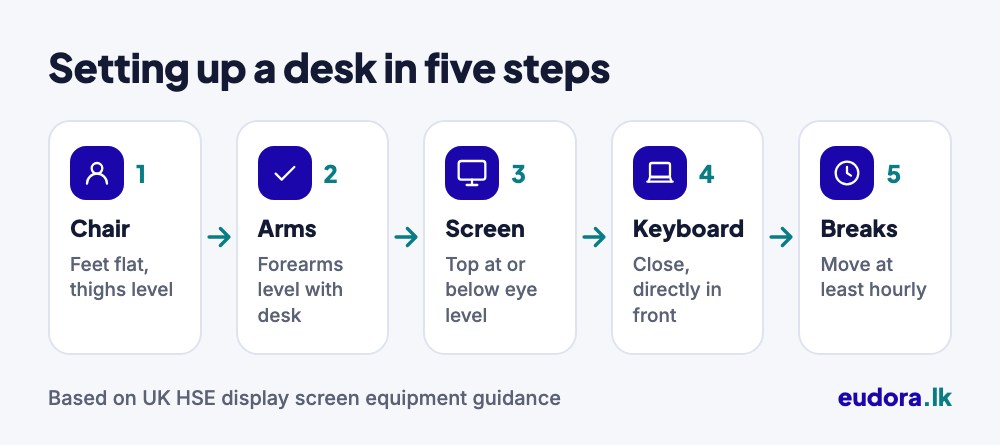
Ergonomic guidance from health and safety bodies, such as the UK Health and Safety Executive’s guidance on display screen equipment, comes down to a few simple principles. Start with the chair, then adjust everything else to suit it.
| Element | Aim for | Common mistake |
|---|---|---|
| Chair height | Feet flat on the floor, thighs roughly horizontal | Chair too low, so arms reach up to the desk |
| Back support | Lower back supported, sitting back in the chair | Perching on the front edge |
| Forearms | Roughly horizontal, elbows near the body | Shoulders raised to reach the keyboard |
| Screen height | Top of the screen at or slightly below eye level | Looking down at a laptop screen all day |
| Screen distance | About an arm’s length away | Too close, causing eye strain |
| Keyboard position | Directly in front, close to the desk edge | Pushed far back or off to one side |
| Mouse position | Beside the keyboard, same height | Stretched out to the side or on a different level |
If your feet do not reach the floor once the chair is at the right height for the desk, use a footrest or a sturdy box. If the screen is too low, raise it on a stand or a stack of books. Position the screen to avoid glare from windows, ideally at right angles to the window rather than facing it or with the window behind it.
The laptop problem
Laptops are designed for portability, not for all-day use. The screen and keyboard are joined, so if the keyboard is at the right height, the screen is too low, and you end up looking down for hours. If you raise the screen to eye level, the keyboard is too high to type on comfortably.
The fix is simple: raise the laptop on a stand or a few books so its screen is near eye level, and use a separate keyboard and mouse at desk height. Better still, connect an external monitor through a hub or dock and use the laptop screen as a second display. Our guide to USB-C hubs and docking stations explains how to connect a monitor, keyboard, mouse and charger through one cable.
Choosing a keyboard and mouse
| Model | Connection | Notable features | Price |
|---|---|---|---|
| Logitech MK120 | Wired USB | Full-size, spill-resistant, adjustable height | Rs 5,000 |
| Logitech MK235 | 2.4GHz wireless | Full-size, keyboard battery up to 36 months | Rs 8,100 |
| Logitech MK295 Silent | 2.4GHz wireless | SilentTouch keys and clicks, spill-resistant | Rs 11,000 |
| Logitech Pebble 2 Combo | Bluetooth or Logi Bolt | Compact, switches between 3 devices | Rs 20,500 |
| Logitech M185 mouse | 2.4GHz wireless | Compact, 1000 DPI, one AA battery | Rs 4,800 |
| Logitech M331 Silent Plus mouse | 2.4GHz wireless | Over 90% less click noise | Rs 6,100 |
Wired or wireless?
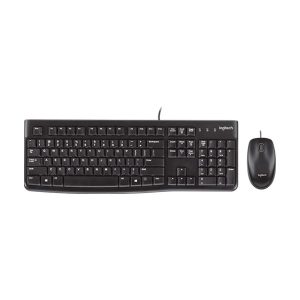
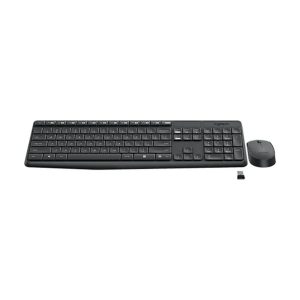
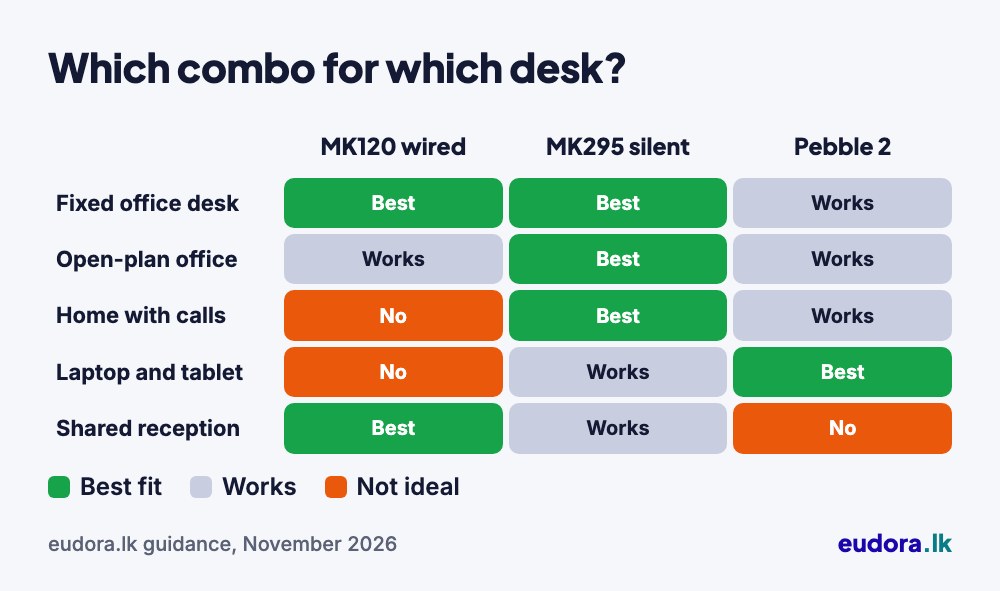
Wired keyboards and mice, such as the Logitech MK120 combo, never need batteries, never lose connection and cost less. They suit fixed office desks, reception counters and shared computers where batteries might go flat unnoticed. Wireless combos remove cables from the desk, let you move the keyboard to wherever is comfortable, and use a tiny USB receiver that can stay plugged in permanently. The Logitech MK235’s keyboard runs for up to 36 months on two AAA batteries, so battery changes are rare.

Silent keyboards and mice
Noise matters more than people expect. In an open-plan office, or at home when someone else is on a call or asleep, the clatter of keys and clicks is distracting. The Logitech MK295 combo uses SilentTouch technology for quieter keys and clicks, and the M331 Silent Plus mouse is rated at over 90% less click noise than a standard mouse while keeping the familiar click feel.
Compact and multi-device
The Logitech Pebble 2 Combo has a compact, low-profile keyboard and a slim mouse that connect by Bluetooth or a Logi Bolt receiver, and switch between up to three devices at the press of a key. It suits people who use a laptop, a tablet and a phone at the same desk, and its compact layout keeps the mouse closer to the body, which many people find more comfortable for the shoulder.
-
 Logitech
 MK120 Wired Keyboard and Mouse Combo
Rs 5,000 Add to cart -
 Logitech
 MK235 Wireless Keyboard and Mouse Combo
Rs 8,100 Add to cart -
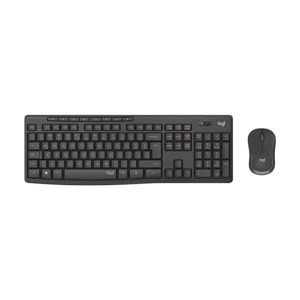 Logitech
 MK295 Silent Wireless Keyboard and Mouse Combo
Rs 11,000 Add to cart -
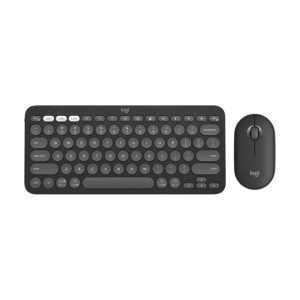 Logitech
 Pebble 2 Combo – Wireless Keyboard and Mouse, Bluetooth and Logi Bolt
Rs 20,500 Add to cart
Habits that matter as much as equipment
Even a well set-up desk causes discomfort if you sit still for hours. Small changes through the day make a real difference.
- Take a short break from the screen at least once an hour; stand, stretch or walk.
- Follow the 20-20-20 habit for your eyes: every 20 minutes, look at something about 20 feet (6 metres) away for 20 seconds.
- Keep wrists straight and relaxed while typing; avoid resting them hard on the desk edge.
- Move the mouse from the elbow and shoulder, not just the wrist.
- Learn keyboard shortcuts for common tasks to reduce mouse use.
- Change position through the day rather than holding one posture.
Tip: Most keyboards have small feet at the back to tilt them. Many people type more comfortably with the keyboard flat, which keeps the wrists straighter. Try both and keep whichever feels better.
Equipping an office
When buying for a whole office, consistency saves time: the same keyboard and mouse at every desk means spares fit anywhere and staff can move between desks easily. Ten Logitech MK120 wired combos cost Rs 50,000, and ten MK295 silent wireless combos cost Rs 110,000. For an open-plan office, the silent models are usually worth the difference. Keep a spare set and a supply of batteries for wireless models.
For staff who work on laptops, a compact keyboard and mouse plus a USB-C hub turns any desk into a comfortable workstation. A Pebble 2 Combo with a UGREEN 7-in-1 hub comes to Rs 28,800. Our IT support team can supply and set up office workstations, and our guide to choosing a laptop covers the computers themselves.
Do not forget audio. Staff who spend much of the day on calls often hunch towards a laptop’s built-in microphone or hold a phone between ear and shoulder, both of which strain the neck. A USB headset with a boom microphone, such as the Logitech H390 at Rs 14,800, lets people sit back in a comfortable position and keeps background noise off the call. Padded ear cushions and in-line volume and mute controls make a real difference over a long day.
Cleaning and care
Keyboards and mice are among the dirtiest objects in an office. Wipe them weekly with a slightly damp cloth or an alcohol wipe, with the computer off or the keyboard unplugged. Turn the keyboard upside down and tap it gently to remove crumbs. Spill-resistant keyboards, such as the MK120 and MK295, tolerate a small accidental spill, but unplug or switch off and let them dry fully before using them again.
Replace keyboards with sticking keys and mice with unreliable clicks or a jumpy pointer; at these prices, a worn-out keyboard is not worth the frustration. For wireless sets, if the pointer stutters, first try fresh batteries and move the receiver closer, for example to a front USB port or a hub on the desk.
Frequently asked questions
Is a wireless keyboard slower than a wired one?
For office work, no. Modern 2.4GHz wireless keyboards and mice respond quickly enough that the difference is not noticeable.
How often do wireless keyboard batteries need changing?
Logitech rates the MK235 keyboard at up to 36 months on two AAA batteries, depending on use. Mice usually need a new battery every year or so.
Should I use a wrist rest?
A soft wrist rest can help during pauses, but avoid resting your wrists on it while typing. Keep wrists straight and floating over the keys.
Can I use one keyboard with my laptop and tablet?
Yes. Multi-device keyboards such as the Logitech Pebble 2 Combo switch between up to three devices with a key press.
What height should my monitor be?
The top of the screen should be at or slightly below eye level, about an arm’s length away.

Eudora Technology is a Kandy-based team working on CCTV, networks, IT support, cloud and websites for homes and businesses across Sri Lanka.