Hard Drive Health and Data Recovery: Warning Signs and What to Do
Clicking noises, slow files and SMART warnings are signs a drive is failing. How to check drive health, what to do when a drive starts to fail and when to call for data recovery.
Every hard drive and SSD eventually fails. Drives in desktops, laptops, external enclosures and CCTV recorders hold years of photos, accounts and footage, and most people only think about them when something goes wrong. The good news is that many failures give warning: strange noises, slow file access, errors when copying, or health warnings from the drive itself. Spotting those signs early is often the difference between copying your files off in an afternoon and paying for professional recovery, or losing them altogether. This guide explains how drives fail, how to check their health, what to do when one starts to fail and how to avoid needing recovery in the first place.
Key points
- Hard drives fail mechanically and electronically; SSDs wear out and can fail suddenly. Neither lasts forever.
- Drives report their own health through SMART data, which free tools such as CrystalDiskInfo display in plain language.
- Clicking, grinding, repeated freezes and growing numbers of reallocated sectors are serious warning signs: copy important files off immediately.
- If a drive with important data fails, stop using it. Repeated attempts, freezer tricks and opening the drive make professional recovery harder.
- The real protection is backup: keep at least one copy of important files on another device and one off-site or in the cloud.
How drives fail
A traditional hard drive stores data on spinning magnetic platters, read by heads that float a tiny distance above the surface. Failures can be mechanical, such as worn bearings, a failed motor or heads touching the platters; electronic, such as a damaged circuit board from a power surge; or gradual, as small areas of the platters become unreadable. SSDs have no moving parts, so they are far more resistant to knocks, but their flash memory wears with each write, and their controller chips can fail without warning.
| Failure type | Typical cause | Common signs |
|---|---|---|
| Bad sectors | Ageing or damaged platter surface | Slow or failed reads, SMART warnings |
| Head or mechanical failure | Wear, drops, knocks | Clicking, grinding, drive not detected |
| Electronic failure | Power surges, lightning, faulty supplies | Drive does not spin up or is not detected |
| SSD wear-out | Many years of heavy writing | Rising wear indicator, read-only mode |
| SSD controller failure | Firmware or hardware fault | Sudden disappearance with no warning |
How long do drives last?
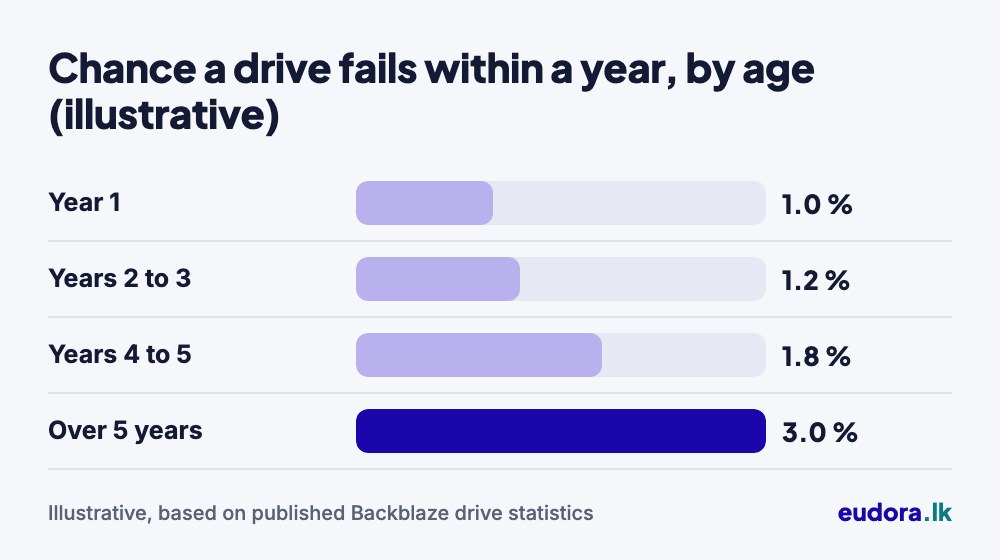
Backblaze, a cloud storage company that publishes failure statistics for hundreds of thousands of drives in its data centres, has reported fleet-wide annualised failure rates of roughly 1 to 2% in recent years. In other words, in a typical year one or two drives in every hundred fail. Failure rates rise as drives age, particularly after about five years, and vary between models. Drives in homes and offices often face harsher conditions than a data centre: heat, dust, power cuts and the occasional knock.
In Sri Lanka, heat and power problems are the two biggest risks. A drive in a closed cabinet with no airflow runs hot, and a lightning strike or voltage spike can damage the electronics. A UPS and surge protection protect drives as much as the computers they sit in; our guide to protecting equipment from lightning and power surges explains how.
Checking drive health with SMART
Almost every hard drive and SSD records its own health data, called SMART (Self-Monitoring, Analysis and Reporting Technology). Free tools read this data and turn it into a simple health status. On Windows, CrystalDiskInfo shows each drive as Good, Caution or Bad, along with temperature and hours in use. On a Mac, Disk Utility shows a basic status, and free tools such as DriveDx give more detail.
| SMART attribute | What it means | When to worry |
|---|---|---|
| Reallocated Sectors Count (5) | Bad areas replaced with spare ones | Any non-zero value that keeps rising |
| Current Pending Sector Count (197) | Areas waiting to be checked or replaced | Any non-zero value |
| Uncorrectable Sector Count (198) | Areas that could not be read | Any non-zero value |
| Reported Uncorrectable Errors (187) | Read errors the drive could not fix | Any non-zero value |
| Temperature | Current drive temperature | Regularly above about 50°C |
| Percentage Used / Wear (SSDs) | How much of the rated life is used | Approaching 100% |
Check your drives every few months and whenever a computer starts behaving oddly. A Caution status is not an emergency, but it is a clear signal to make sure everything on the drive is backed up and to plan a replacement.
Tip: CCTV recorders show drive health in their storage menu. Check it during routine maintenance; a recorder that silently stops recording because of a failed drive is a common discovery after an incident.
Warning signs to act on
- Clicking, grinding, buzzing or repeated spin-up sounds from a hard drive.
- Files or folders that take far longer than usual to open, or fail to open.
- Copy errors, or Windows asking to scan and repair a drive repeatedly.
- The computer freezing for seconds at a time when accessing files.
- The drive disappearing and reappearing, or not being detected at start-up.
- A SMART status of Caution or Bad, or rising reallocated sector counts.
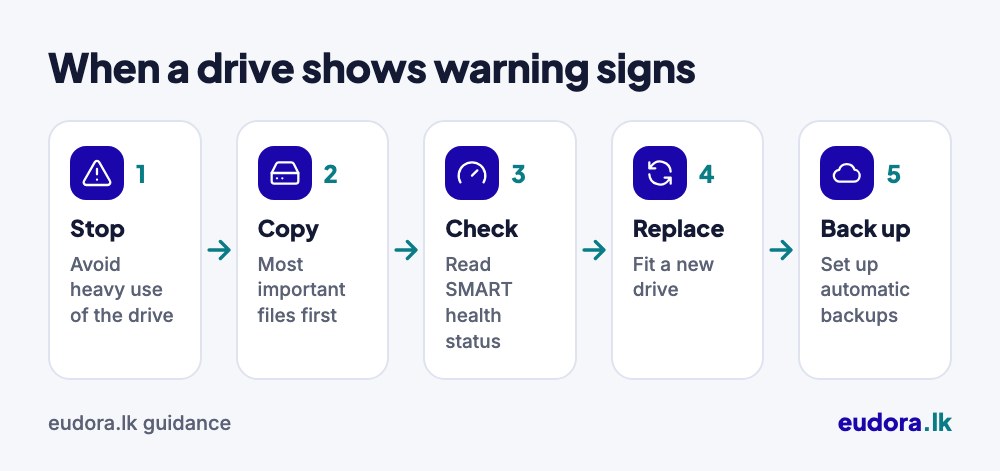
If you notice any of these, copy your most important files to another drive or to cloud storage straight away, most important first. A failing drive may get worse with every hour it runs, so do not start with a full backup of everything; save the irreplaceable files first.
When a drive has already failed
If a drive holding important, unbacked-up data stops working, what you do next matters. Many recoverable drives are made unrecoverable by well-meaning attempts to fix them.
| Do | Avoid |
|---|---|
| Power the drive off and stop using it | Repeatedly switching it on to see if it works |
| Note what happened and any sounds it made | Running repair or defragmentation tools on it |
| Try it once in a USB adapter on another computer if it is not clicking | Opening the drive; dust destroys platters |
| Use recovery software only on drives that work mechanically | Installing recovery software onto the failing drive |
| Contact a professional recovery service for clicking or dead drives | Freezer tricks and tapping the drive |
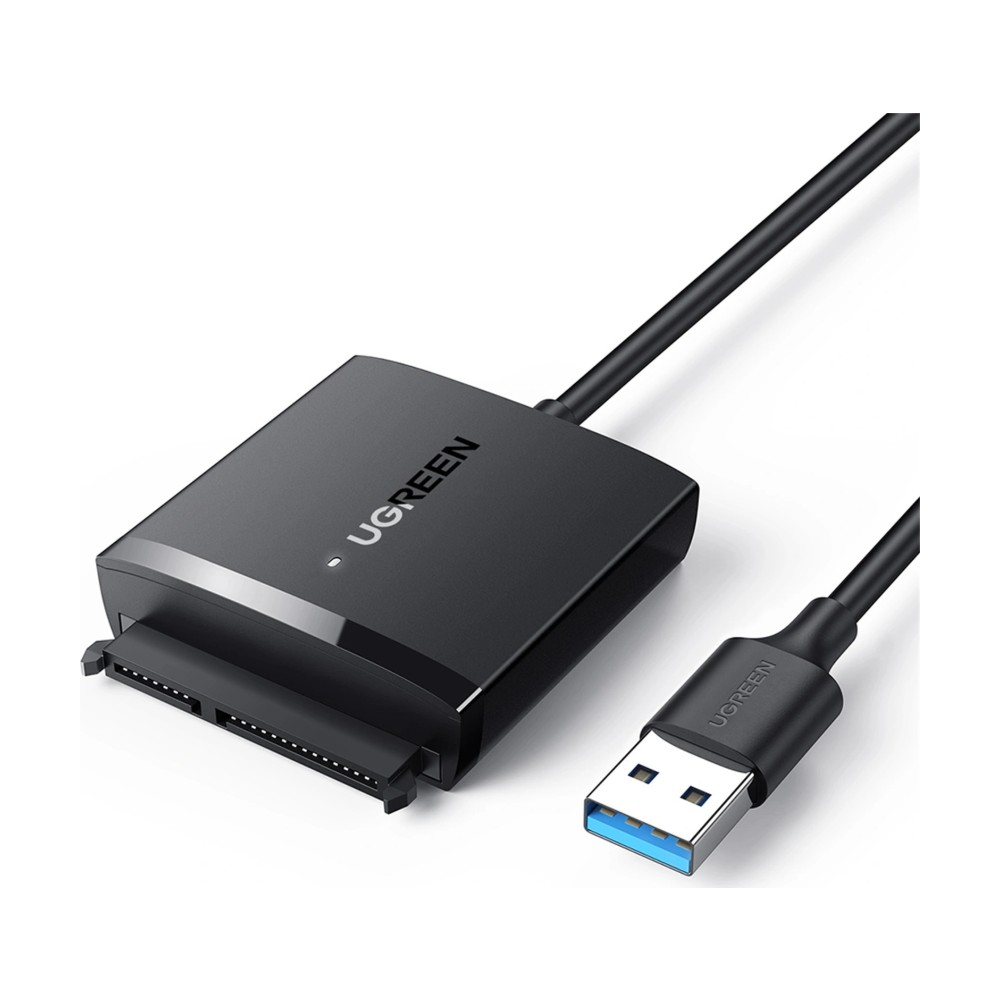
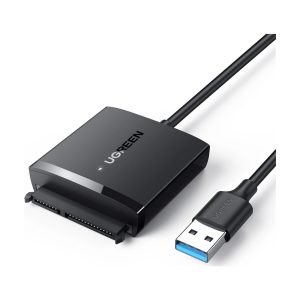
For a drive from a dead laptop or desktop that still spins normally, a USB to SATA adapter such as the UGREEN CM257, at Rs 4,100, connects it to another computer as an external drive. It supports 2.5-inch and 3.5-inch SATA drives; 3.5-inch drives also need a 12V power adapter. If the files are readable, copy them off immediately. If not, and the files matter, stop and seek professional help.
Deleted files and accidentally formatted drives are a different case: the drive works, but files are gone. Stop writing anything to the drive, because new data overwrites the deleted files, and use recovery software from another drive. On SSDs, a feature called TRIM usually clears deleted data quickly, so recovery of deleted files from SSDs is often impossible, which is another reason to keep backups.
Replacing drives in CCTV recorders
CCTV recorders write to their drives around the clock, so surveillance drives designed for constant writing, such as WD Purple and Seagate SkyHawk, last far better than ordinary desktop drives. The Seagate SkyHawk 2TB costs Rs 46,700; with a maintenance visit to fit it and reconfigure recording, the total is Rs 51,200. Our guide to surveillance drives versus desktop drives explains the difference, and our article on how much storage CCTV needs helps size the replacement.
-
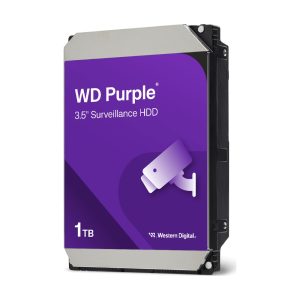 Western Digital
WD Purple 1TB Surveillance Hard Drive
Rs 20,800 Add to cart -
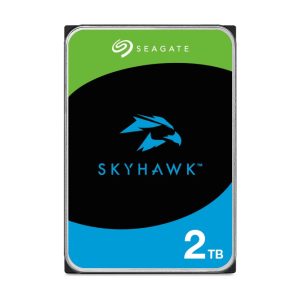 Seagate
 SkyHawk 2TB Surveillance Hard Drive (3-year warranty)
Rs 46,700 Add to cart -
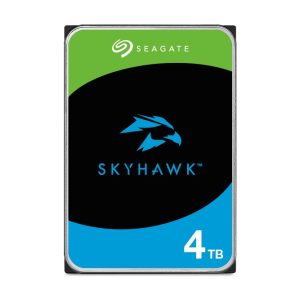 Seagate
 SkyHawk 4TB Surveillance Hard Drive (3-year warranty)
Rs 65,600 Add to cart -
 UGREEN
 CM257 USB 3.0 to SATA Converter – 2.5 and 3.5-inch Drives
Rs 4,100 Add to cart
Keeping drives healthy
A few simple habits extend the life of any drive. Keep computers and recorders in a ventilated spot, not in a closed cupboard or against a wall that blocks the fans. Clean dust from vents every few months, especially in shops and workshops. Use a UPS so power cuts do not interrupt writes, and never move a desktop or external hard drive while it is running. Laptops with hard drives are most at risk when carried while on, so put them to sleep before moving them.
Prevention: backups beat recovery
Professional data recovery can cost far more than the drive, and it does not always succeed. A simple backup routine makes most drive failures an inconvenience rather than a disaster. Keep at least three copies of important data, on two different types of storage, with one copy off-site or in the cloud. Our guide to the 3-2-1 backup rule explains how to set that up, and our IT support team can configure automatic backups for homes and offices.
Frequently asked questions
How do I know if my hard drive is failing?
Listen for clicking or grinding, watch for slow file access, freezes and copy errors, and check the SMART status with a free tool such as CrystalDiskInfo.
Can data be recovered from a clicking hard drive?
Often yes, by a professional recovery service with a clean room. Stop using the drive immediately; running it longer can damage the platters further.
Do SSDs fail less than hard drives?
SSDs resist knocks better and have no moving parts, but they wear with writing and can fail suddenly. Back them up just as you would a hard drive.
Can I recover deleted files from an SSD?
Often not, because TRIM clears deleted data quickly. Backups are the reliable way to get deleted files back.
How often should I replace a hard drive?
There is no fixed rule, but failure rates rise after about five years. Replace drives that show SMART warnings, and replace CCTV drives proactively in older systems.

Eudora Technology is a Kandy-based team working on CCTV, networks, IT support, cloud and websites for homes and businesses across Sri Lanka.