Managed Cloud Backup for Office PCs: How It Works and What It Costs
Why OneDrive sync is not a backup, how managed cloud backup protects office PCs and servers from ransomware and theft, and how it fits with a NAS in a 3-2-1 plan.
Every business has data it cannot afford to lose: accounts, invoices, customer records, designs, contracts, payroll files and years of email. Most of it lives on a handful of office computers and perhaps a small server or NAS. Hardware fails, laptops are stolen, offices flood, and ransomware encrypts everything it can reach, including drives plugged into the computer. Many owners believe they are covered because files sync to OneDrive or Google Drive, but sync is not the same as backup. A managed cloud backup service keeps encrypted, versioned copies of each computer off site, watched by someone whose job is to notice when a backup fails. This guide explains how it works, how it differs from sync, what it costs and how it fits into a complete backup plan.
Key points
- File sync copies changes, including deletions and ransomware damage, to every device; a backup keeps older versions you can go back to.
- Managed cloud backup sends encrypted, versioned copies of each computer to a remote data centre automatically.
- “Managed” means someone monitors every backup and acts when one fails, which is where most do-it-yourself backups break down.
- Combine cloud backup with a local copy on a NAS for fast restores: the 3-2-1 rule.
- A backup you have never restored is untested; schedule restore tests.
Sync is not backup
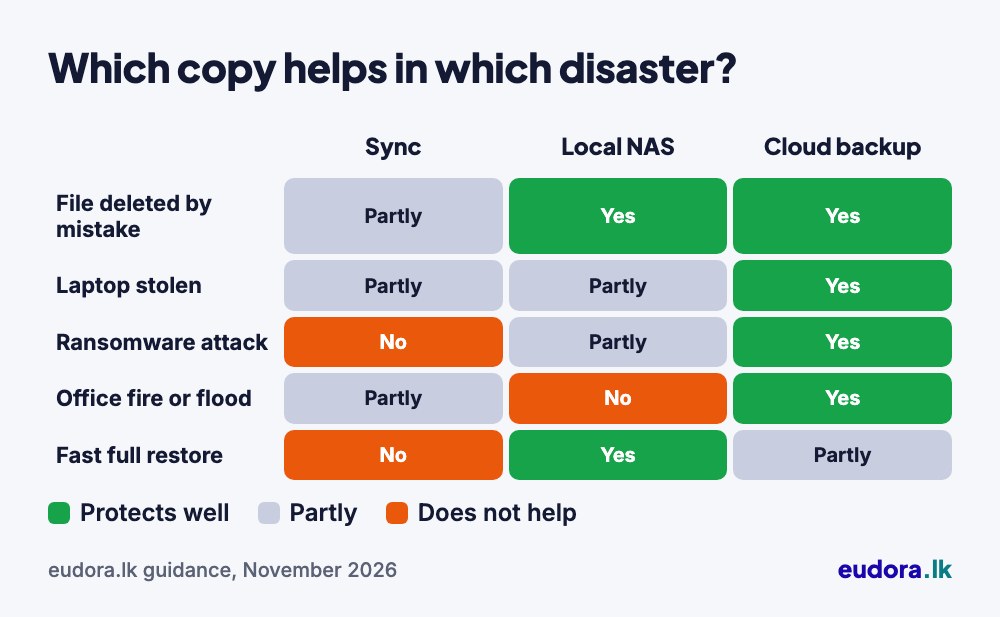
OneDrive, Google Drive and Dropbox are excellent for working on files from anywhere and sharing them with colleagues. They keep the same files in step across devices. That is exactly the problem in a disaster: if a file is deleted by mistake, the deletion syncs everywhere; if ransomware encrypts the files, the encrypted versions sync too. These services do keep some version history and a recycle bin for a limited time, which helps in small accidents, but they are not designed as a complete, long-term, independently controlled backup.
| Cloud sync (OneDrive, Google Drive) | Managed cloud backup | |
|---|---|---|
| Main purpose | Access and share current files | Recover from loss and damage |
| Deleted files | Deleted everywhere, recoverable for a limited time | Kept according to retention policy |
| Ransomware | Encrypted files can sync | Earlier clean versions remain |
| What is covered | Chosen folders | Whole computer or chosen data, including apps and settings |
| Monitoring | Usually none | Failures alerted and acted on |
Microsoft 365 and Google Workspace data itself also benefits from separate backup; our guide to the 3-2-1 backup rule explains why independent copies matter.
How managed cloud backup works
A small backup agent is installed on each computer or server. It takes a first full copy of the selected data, encrypts it on the computer, and sends it to a remote data centre. After that, it sends only the changes, usually several times a day, which keeps internet use modest. Each backup is kept as a version, so you can restore a file as it was yesterday, last week or last month, depending on the retention period.
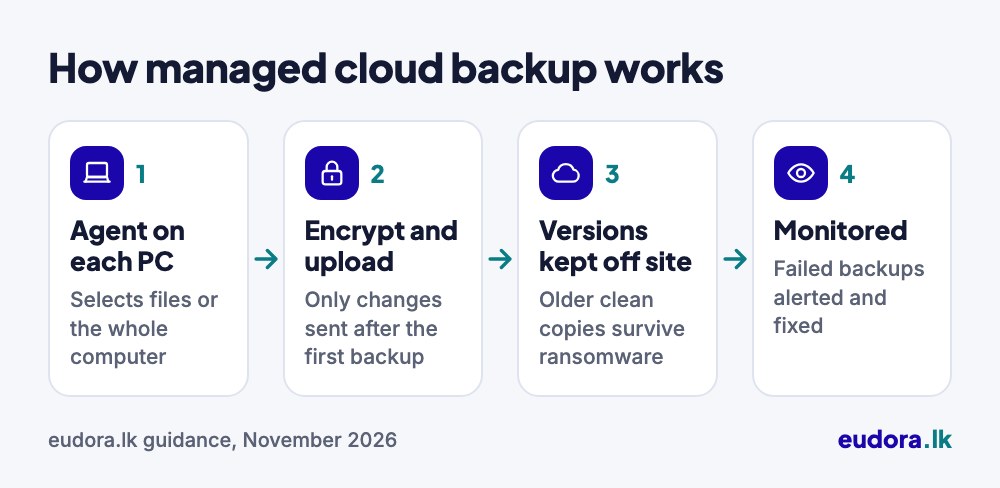
The “managed” part is what makes the difference. With do-it-yourself backup, a failure often goes unnoticed for months: a full disk, an expired password, a computer that was never switched on during the backup window. A managed service monitors every device, receives an alert when a backup fails, and fixes the problem before it matters. Our Managed Cloud Backup service costs Rs 2,500 a month for each computer or server, covering up to 500GB of encrypted, monitored off-site backup.
Tip: Ask any backup provider three questions: where is the data stored, how long are versions kept, and how quickly can you restore a whole computer? Clear answers are a good sign.
Protection against ransomware
Ransomware is the most serious threat to small business data. It spreads through phishing emails, fake downloads and weak remote access, encrypts files on the computer and any connected drives or shared folders, and sometimes deletes backups it can reach. Cloud backup defends against this in several ways: backups are stored off site, out of the ransomware’s reach; older versions remain clean even after files are encrypted; and good services keep backups immutable for a period, meaning they cannot be altered or deleted even with the account password. Recovery is then a matter of cleaning or reinstalling the affected computers and restoring the last good version.
Prevention still matters. Keep Windows and software updated, use good antivirus, train staff to spot phishing and require two-factor authentication. Our guide to antivirus for Windows and our article on two-factor authentication cover those basics.
Cloud plus local: the hybrid approach
Cloud backup protects against the worst events, but restoring a whole computer or server over the internet can take many hours on a typical office connection. A local copy on a NAS restores far faster. The best plan for most offices combines both, following the 3-2-1 rule: three copies of important data, on two different types of storage, with one copy off site.
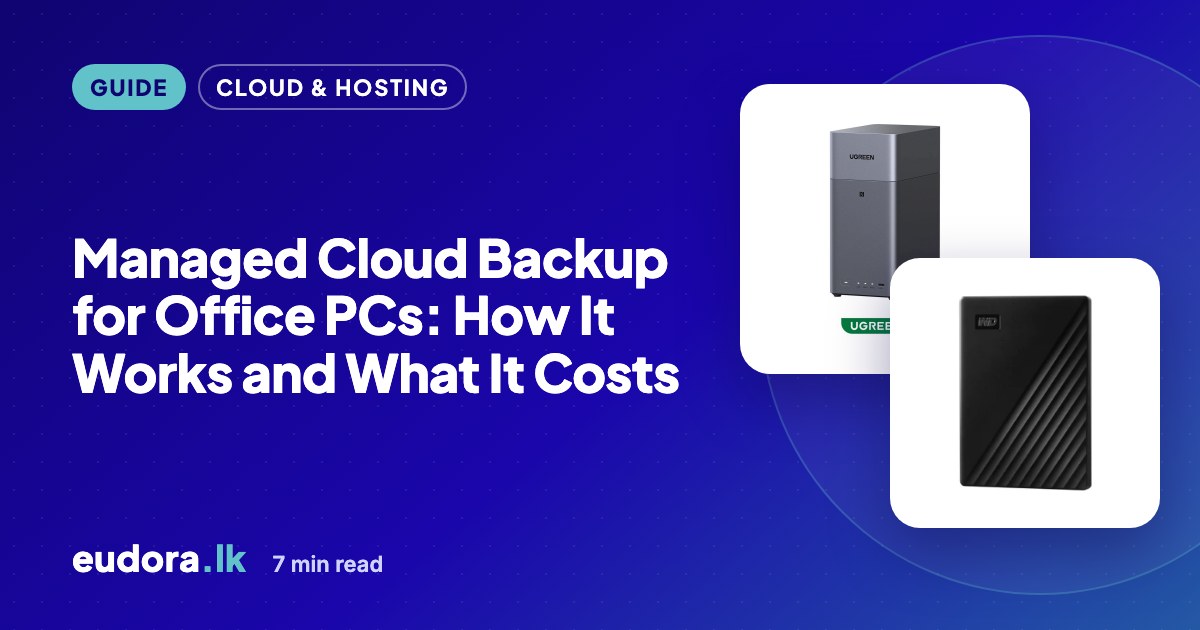
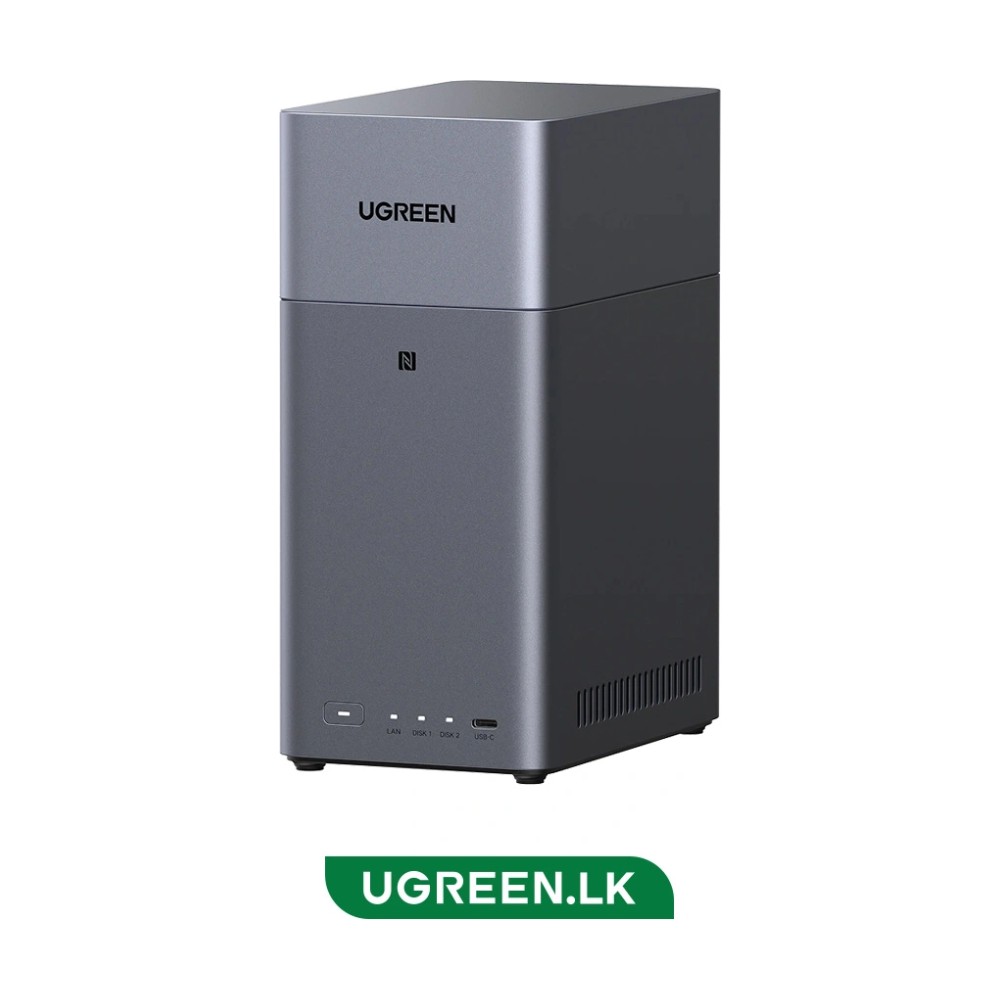
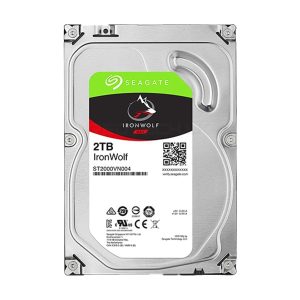
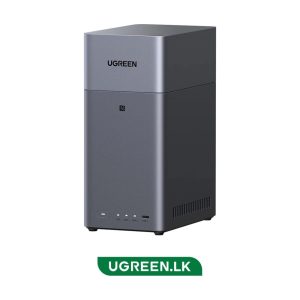
A practical hybrid setup is a two-bay NAS in the office receiving nightly backups from every computer, with cloud backup protecting the most important computers and the NAS itself. Our Backup System Setup service at Rs 14,900 designs and installs the plan; with a UGREEN NASync DH2300 and two 2TB Seagate IronWolf drives mirrored, the one-time cost comes to Rs 185,800. Our NAS guide explains mirroring and placement.
What it costs for a typical office
For a five-computer office, managed cloud backup at Rs 2,500 per device comes to Rs 12,500 a month, or Rs 150,000 a year. Compare that with the cost of a single lost day of work, re-creating a year of invoices or paying a ransom with no guarantee of recovery. Not every computer needs the same protection: a reception PC with no local files may need none if work lives in Microsoft 365, while the accounts computer and any server deserve the strongest cover. Our guide to budgeting cloud costs shows how to keep subscriptions under control.
Restore testing
A backup is only proven when a restore works. Schedule a test at least every quarter: restore a few files from last month, and once a year restore a whole computer to spare hardware or a virtual machine. Record how long it took. This tells you whether your plan meets your needs and catches problems such as missing folders or forgotten passwords before a real disaster. A managed service should help with these tests and provide a report.
Servers and business applications
Servers and the applications on them need extra care. An accounting database or point-of-sale server that is copied while it is being written to can produce a backup that will not open. Good backup agents use application-aware methods, such as Windows Volume Shadow Copy, to take consistent snapshots of databases while they run, or the application’s own export runs on a schedule and the export file is backed up. Check with your software vendor which method they support, and test a restore of the database onto a spare machine, not just individual files.
Decide in advance how much data you could afford to lose and how long you could be without each system. If losing a day of invoices is unacceptable, back up the accounts server several times a day. If the shop cannot open without its point-of-sale system, keep a local copy that can be restored within an hour. Writing these targets down turns backup from a technical setting into a business decision, and makes it clear where to spend.
Laptops and remote staff
Laptops are the most likely devices to be lost, stolen or dropped, and they often spend days away from the office NAS. Cloud backup suits them well, because it runs wherever the laptop has internet. Combine it with BitLocker encryption so a stolen laptop is an equipment loss, not a data breach, and with device management where possible. Our desktop versus laptop guide covers securing laptops more widely.
Personal data and where backups live
Backups of customer and staff data are personal data too. Sri Lanka’s Personal Data Protection Act expects that data to be kept secure and, when stored outside the country, protected by appropriate safeguards. Ask the backup provider where the data centre is and whether backups are encrypted before leaving your premises. Our guide to cloud data residency and the PDPA explains what to check.
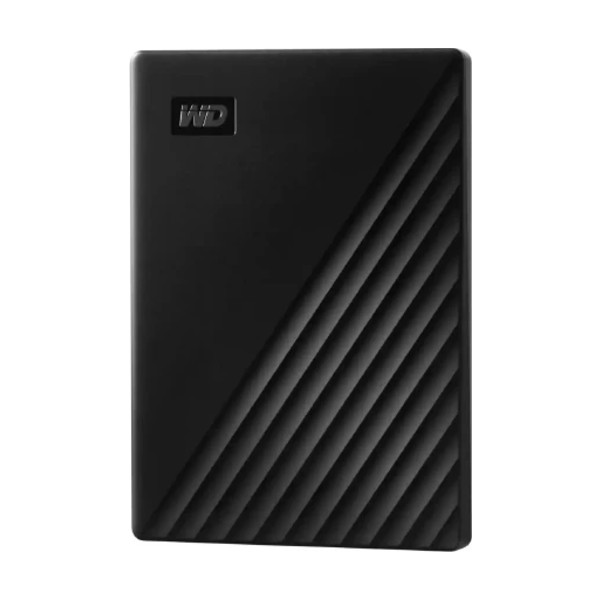
An extra offline copy on a portable drive such as the WD My Passport 2TB at Rs 41,500, updated monthly and kept away from the office, adds protection for the most critical files.
Frequently asked questions
Is OneDrive a backup?
Not on its own. It syncs files and keeps limited version history, but deletions and ransomware damage sync too. Use a separate backup as well.
How much internet does cloud backup use?
The first backup uploads everything, which can take days. After that, only changes are sent, which is usually modest.
Can cloud backup restore a whole computer?
Yes, with image-level backup, though restoring over the internet is slower than from a local NAS.
Is my backed-up data private?
With a good service, data is encrypted on your computer before it is uploaded, so the provider cannot read it.
How often should backups run?
At least daily for important computers; several times a day for busy accounts or design files.

Eudora Technology is a Kandy-based team working on CCTV, networks, IT support, cloud and websites for homes and businesses across Sri Lanka.